


L'intégration de Pippen à TELUS PS Suite permet à Pippen de fonctionner en parfaite harmonie avec votre DME, ce qui vous aide à consacrer moins de temps aux tâches manuelles et davantage à vos consultations.
Pour garantir le bon fonctionnement de l'intégration, deux éléments sont indispensables:
- L'application Pippen Companion – fonctionne sur votre ordinateur et permet la communication entre Pippen et votre DME
- La barre d'outils Pippen – vous permet de transférer facilement des notes et d'interagir directement avec PS Suite
Les deux composants doivent être installés et configurés pour que l'intégration fonctionne correctement.
Table des matières
Étape 1 : L'application Pippen Companion
Étape 2 : Configuration et utilisation de la barre d'outils Pippen
Installation de l'application Pippen Companion sous Windows
Étape 1 : Télécharger l'application
Cliquez sur le lien ci-dessous pour télécharger l'application pour Windows
Étape 2 : Lancez le programme d'installation
Une fois le téléchargement terminé,double-cliquez sur le fichierpour lancer l'installation.
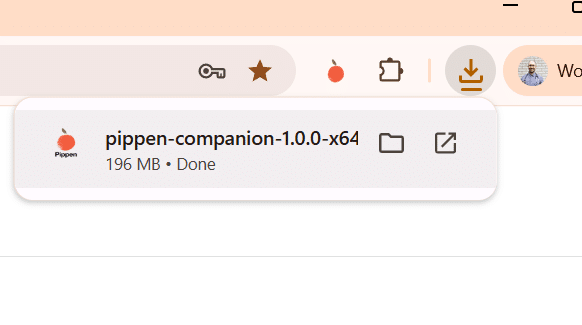
L'installation s'effectuera automatiquement en arrière-plan.
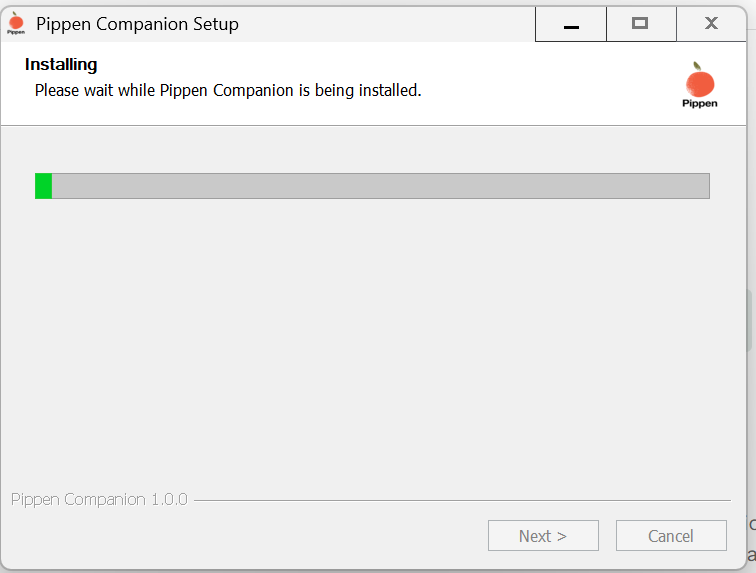
Étape 3 : Terminer l'installation
Une fois l'installation terminée, cliquez surTerminer.
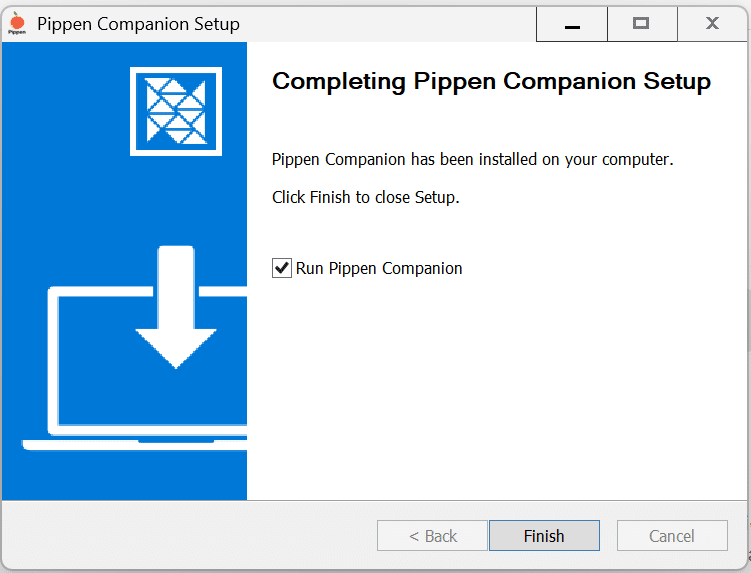
L'application Pippen Companion est désormais installée sur votre ordinateur.
Étape 4 : Se connecter
Ouvrez l'application Pippen Companion.
Connectez-vous à l'aide de votreadresse e-mail et de votre mot de passe Pippen.
Étape 5 : Regardez la démonstration
N'oubliez pas de regarder lesvidéos de démonstrationpour apprendre à utiliser efficacement l'application Companion.
Installation de l'application Pippen Companion sur Mac
Étape 1 : Vérifiez le type de puce de votre Mac
Pippen Companion existe en différentes versions selon le processeur de votre Mac.
- Ouvrir les paramètres système
- Allez dans Général → À propos
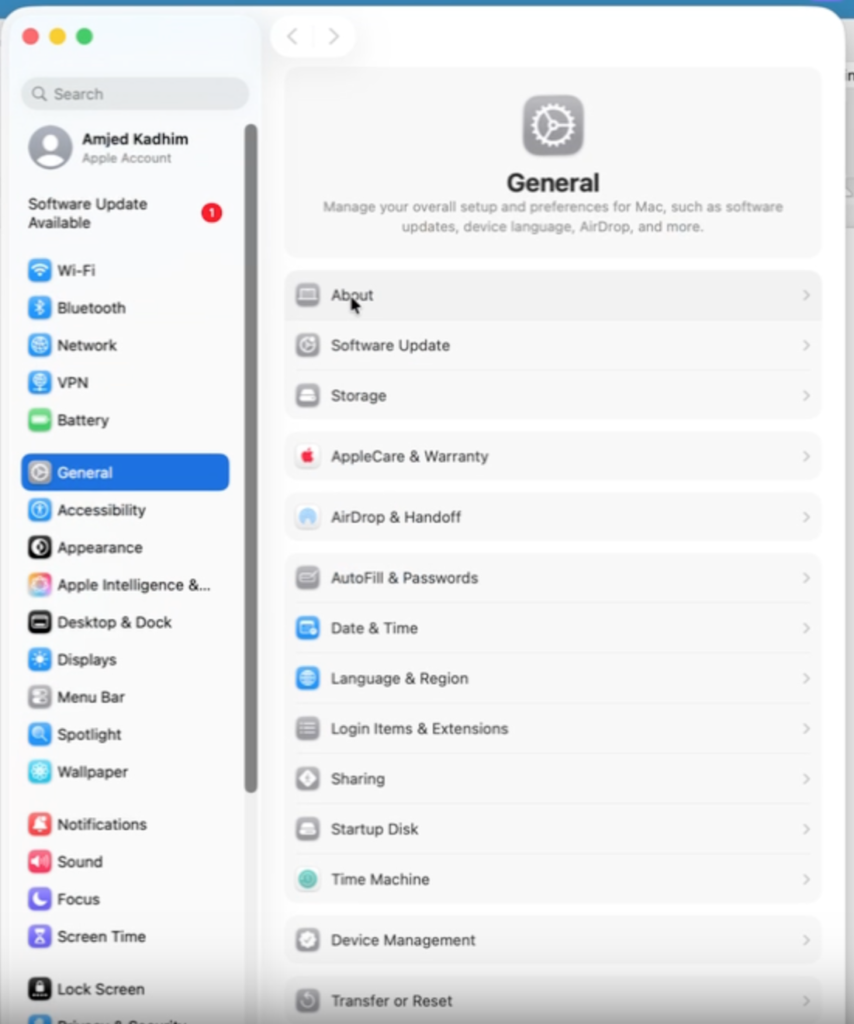
- Rechercher Chip
- Apple Silicon comprend des puces telles que M1, M2, M3 ou M4.
- Les Mac plus anciens peuvent afficher Intel
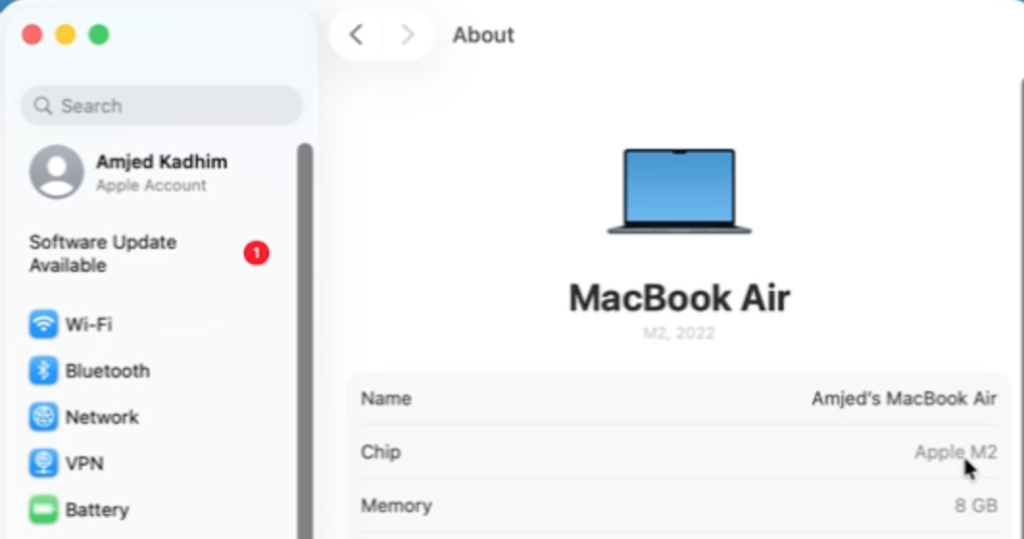
Si vous n'êtes pas sûr, une recherche rapide en ligne du nom de votre puce vous permettra de le confirmer.
Étape 2 : Télécharger l'application
Cliquez sur l'un des deux liens ci-dessous pour sélectionner la version correspondant au type de puce de votre Mac.
Le fichier d'installation sera téléchargé sur votre ordinateur.
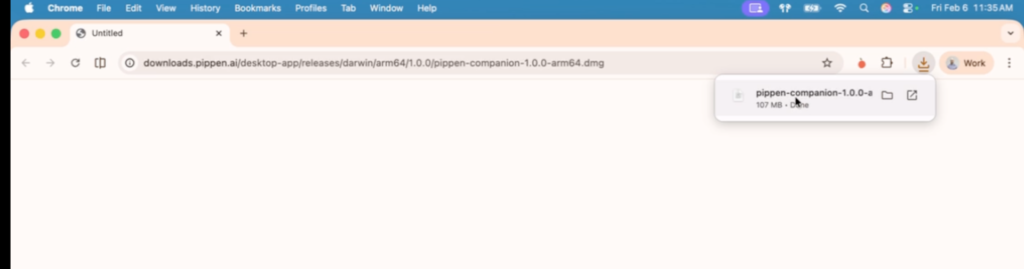
Double-cliquez sur le fichier téléchargé pour l'ouvrir.
Étape 3 : Installer Pippen Companion
- Une fenêtre apparaîtra affichant Pippen Companion.
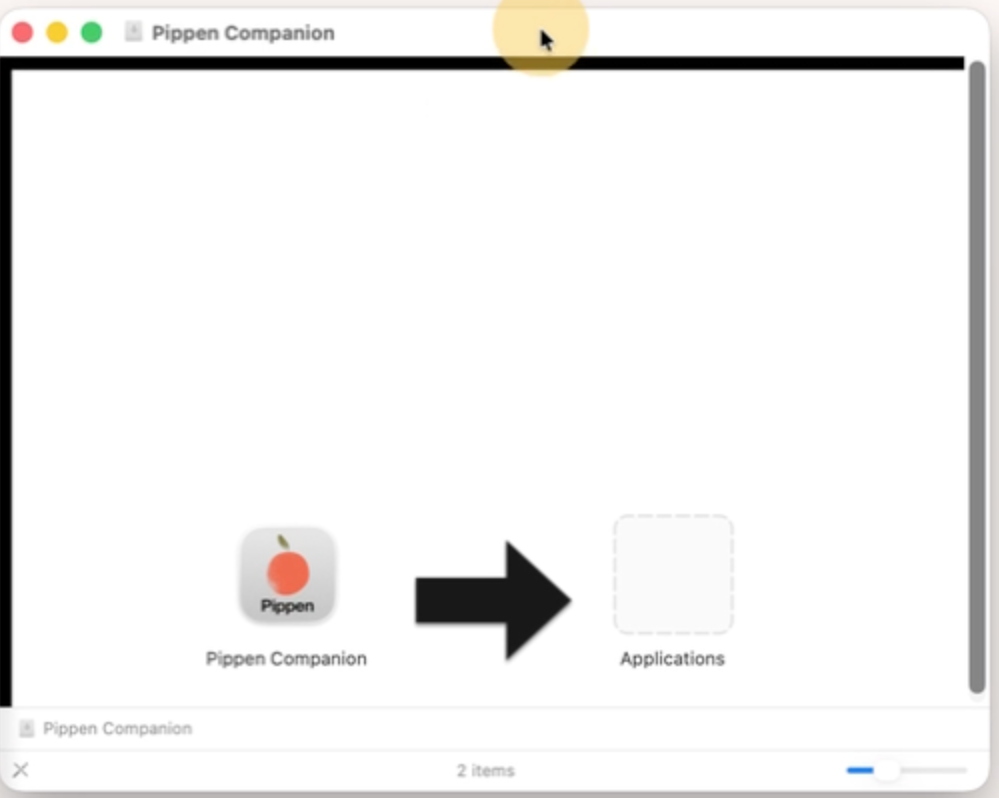
- Faites glisser Pippen Companion dans votre dossier Applications.
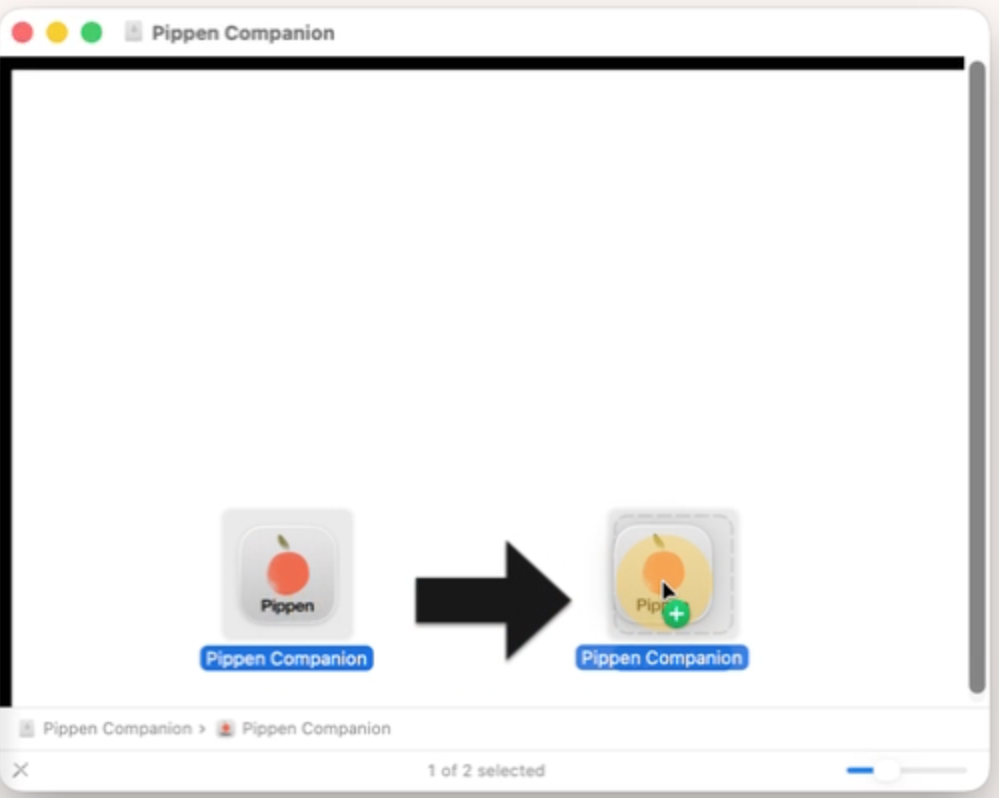
3. Fermez la fenêtre une fois le transfert terminé
4. (Facultatif) Cliquez avec le bouton droit de la souris sur le programme d'installation et sélectionnez « Éjecter ».
Étape 4 : Ouvrez l'application
- Ouvrez le Finder → Applications
- Double-cliquez sur Pippen Companion.
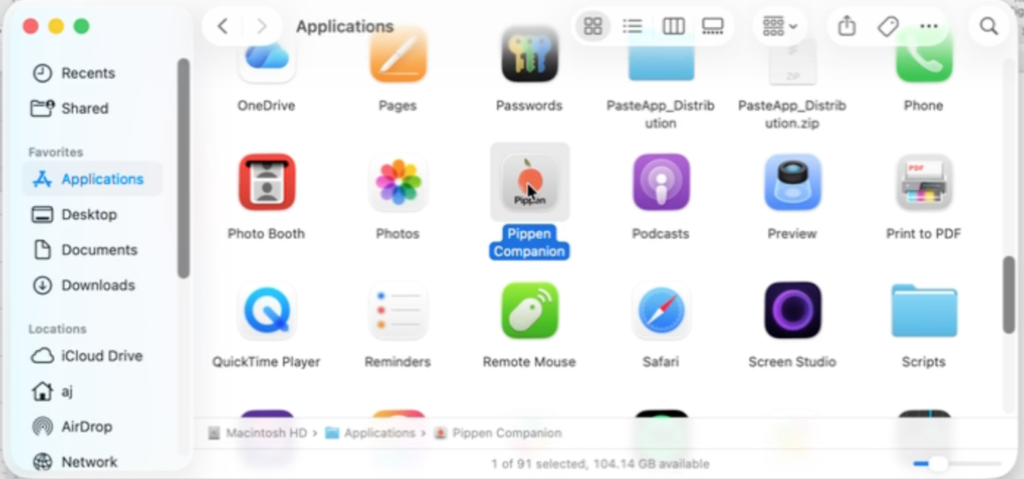
- Si un message de sécurité s'affiche (« Cette application a été téléchargée depuis Internet »), cliquez sur Ouvrir.
Étape 5 : Accorder les autorisations d'accessibilité (obligatoire)
Pippen Companion nécessite des autorisations d'accessibilité pour fonctionner correctement.
- Lorsque vous y êtes invité, cliquez sur Ouvrir les paramètres système.
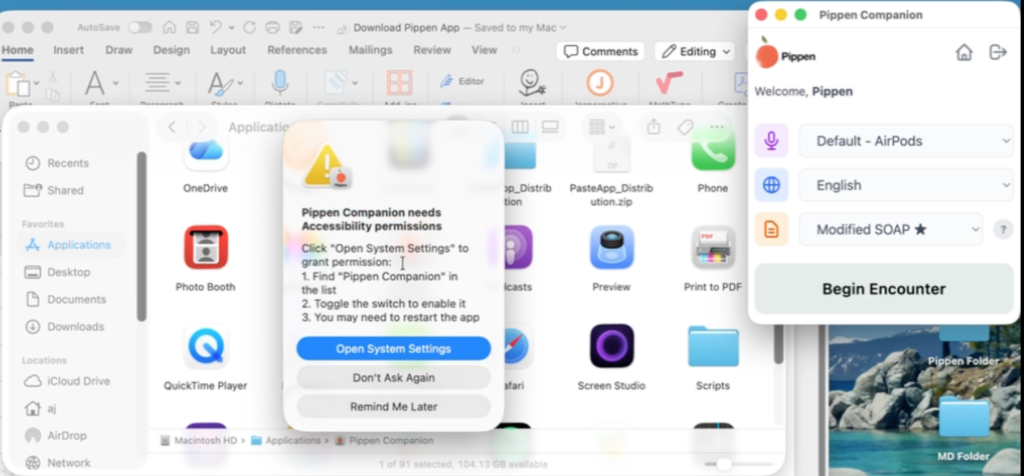
- Recherchez Pippen Companion dans la liste.
- Activez-le
- Entrez votre mot de passe Mac si vous y êtes invité, puis cliquez sur Modifier les paramètres.
Important : sans cette autorisation, l'application ne fonctionnera pas correctement.
Étape 6 : Vous êtes prêt !
Une fois les autorisations accordées, Pippen Companion est immédiatement prêt à l'emploi.
Veuillez vous reporter à la vidéo d'installation ci-dessous pour obtenir des instructions détaillées sur la manière d'installer l'application Pippen Companion sur MacOS.
Comment installer l'application Pippen Companion sur MacOS
Configuration et utilisation de la barre d'outils Pippen
Étape 1 : Téléchargements
Vous devez d'abord télécharger la barre d'outils et les fichiers de rappel ici (cliquez sur chacun des liens ci-dessous et enregistrez-les sur votre ordinateur, par exemple sur le Bureau) :
Barre d'outils Pippen AI (formulaire personnalisé).
Rappel concernant la barre d'outils Pippen AI (pour afficher la barre d'outils dans le graphique).
Installation de la barre d'outils PS Suite
Une fois que vous avez téléchargé les fichiers ci-dessus, vous pouvez procéder à l'installation sur PS Suite EMR :
Étape 2 : Installer le formulaire personnalisé
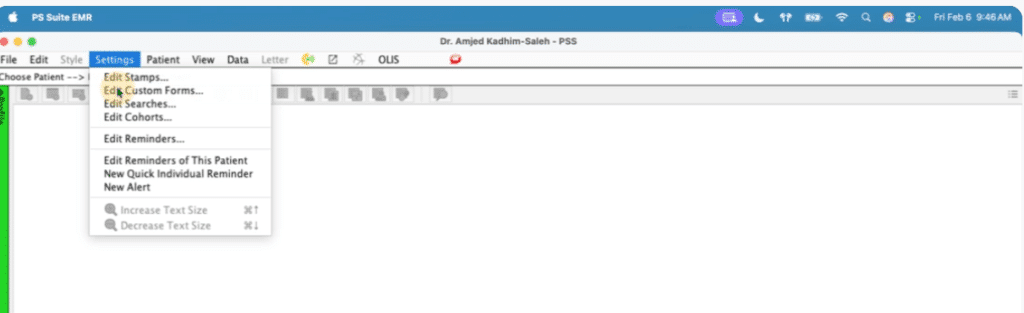
- Ouvrez n'importe quel dossier patient dans PS Suite.
- Cliquez surParamètres → Modifier les formulaires personnalisés.
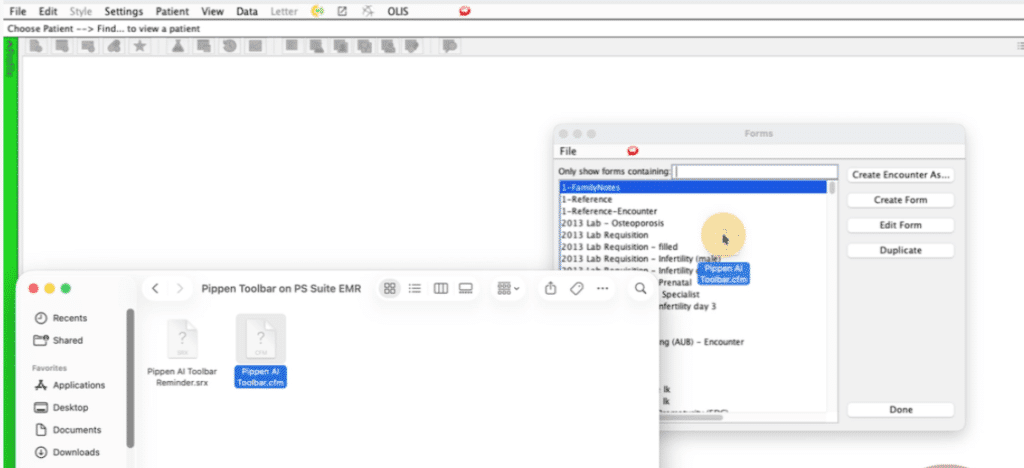
- Faites glisserle fichier « Pippen AI Toolbar.cfm »dans la fenêtre ouverte
ou
. Cliquez surFichier → Importer un formulaire, puis sélectionnez le fichier.
Étape 3 : Installer le rappel
Afin de vous assurer que la barre d'outils s'affiche dans le dossier individuel d'un patient, vous devez également installer le fichier « Reminder ».
- Ouvrez n'importe quel dossier patient dans PS Suite.
- Cliquez surParamètres → Modifier les rappels.
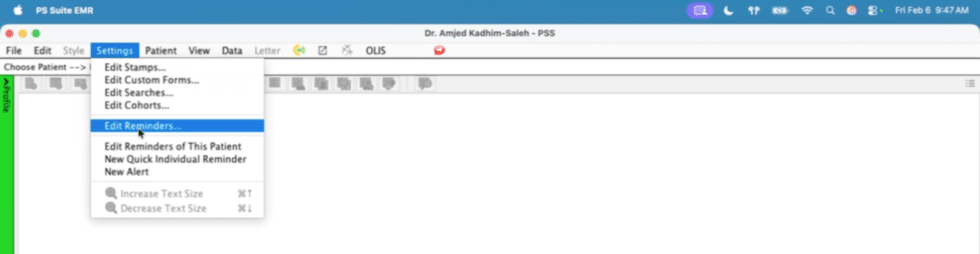
- Faites glisserle fichier « Pippen AI Toolbar Reminder.srx »dans la fenêtre ouverte
ou
. Cliquez surFichier → Importer un formulaire, puis sélectionnez le fichier.
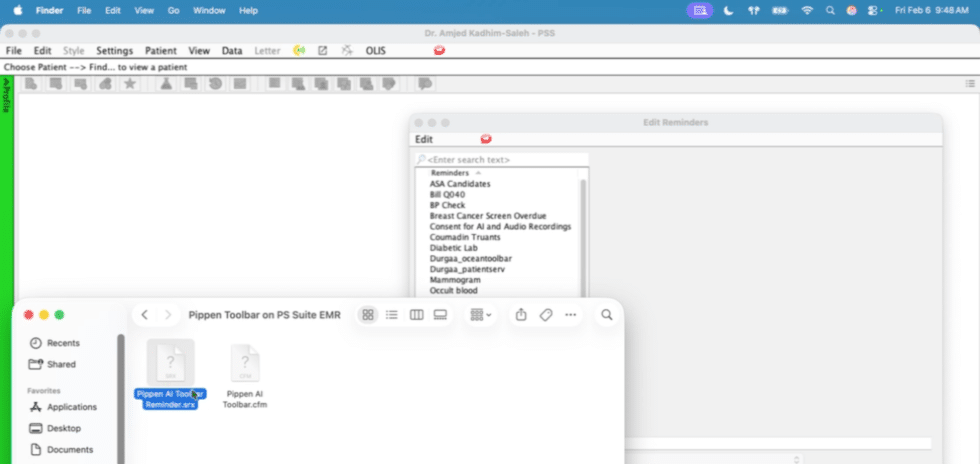
Une fois ces deux étapes terminées, la barre d'outils devrait être disponible.
Vous trouverez ci-dessous une vidéo qui vous explique étape par étape comment télécharger ces fichiers ! N'hésitez pas à la regarder. Et comme d'habitude, si vous avez des questions, n'hésitez pas à contacter l'équipe Pippen àl'adresse team@pippen.ai ouvia la fenêtre de discussion intégrée à l'application.
Cordialement,
L'équipe Pippen

 Je le recommande à 100 % à tout médecin de famille. Je n'avais pas réalisé à quel point l'établissement des dossiers était devenu fastidieux jusqu'à ce que Pippen m'en débarrasse. Mes journées sont infiniment plus agréables et je suis en mesure de prodiguer de meilleurs soins à mes patients. Pippen tient compte de mes commentaires pour améliorer constamment mes notes. Grâce à Pippen, mes journées de travail sont un jeu d'enfant alors qu'auparavant elles étaient un tsunami de paperasse.