


Pippen’s TELUS PS Suite integration allows Pippen to work seamlessly alongside your EMR, helping you spend less time on manual work and more time seeing patients.
To ensure the integration works properly, there are two required components:
- The Pippen Companion App – runs on your computer and enables communication between Pippen and your EMR
- The Pippen Toolbar – allows you to easily transfer notes and interact with PS Suite directly
Both components must be installed and set up for the integration to function correctly.
Table of Contents
Step 1: The Pippen Companion App
Step 2: Setting up and using the Pippen toolbar
Installing the Pippen Companion App on Windows
Step 1: Download the App
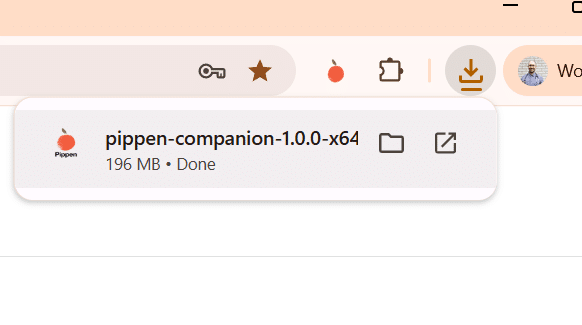
Click on the link here to download the app for Windows
Step 2: Run the Installer
Once the download is complete, double-click the file to start the installation.
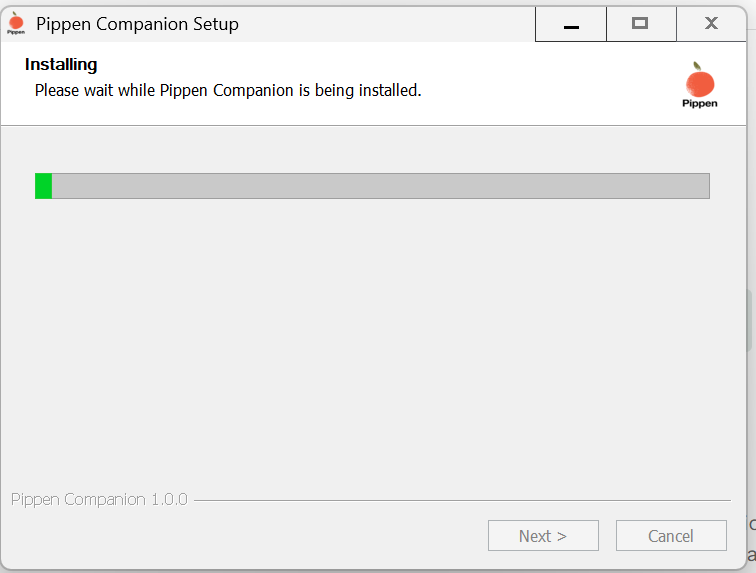
The installation will run automatically in the background.
Step 3: Complete the Installation
When the installation finishes, click Finish.
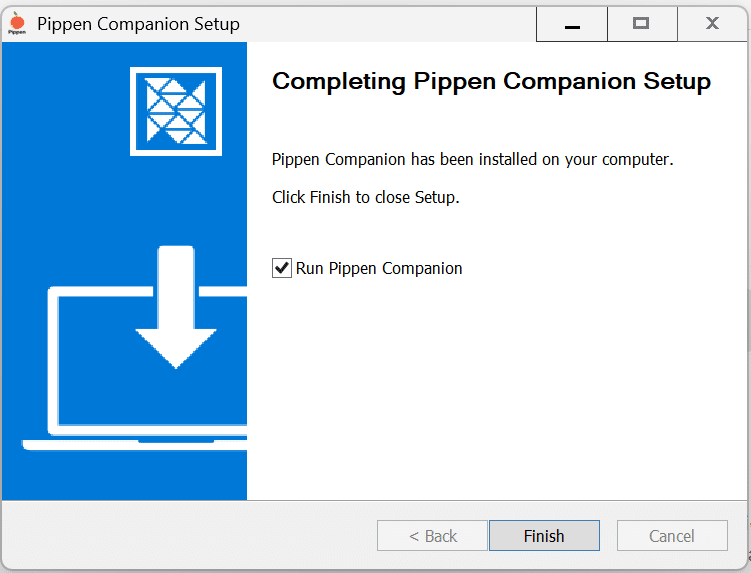
The Pippen Companion app is now installed on your computer.
Step 4: Sign In
Open the Pippen Companion App.
Sign in using your Pippen email and password.
Step 5: Watch the Demo
Please be sure to watch the demonstration videos to learn how to use the Companion App effectively.
Installing the Pippen Companion App on Mac
Step 1: Check Your Mac’s Chip Type
Pippen Companion has different versions depending on your Mac’s processor.
- Open System Settings
- Go to General → About
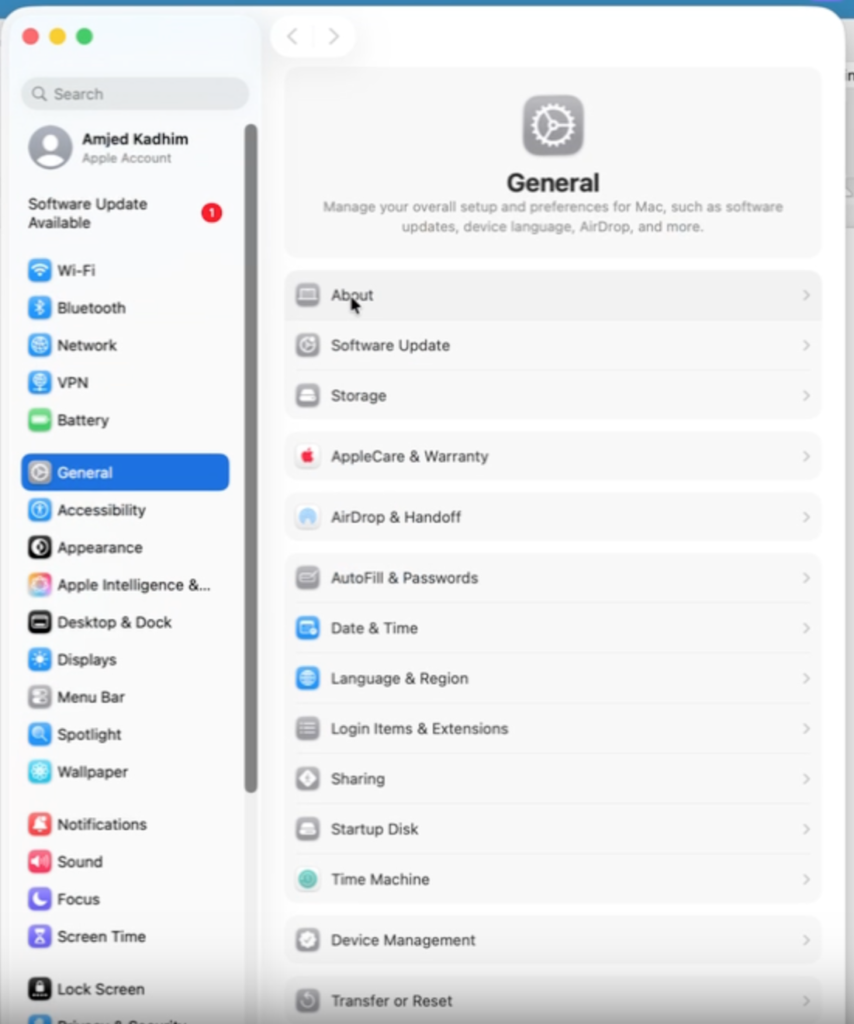
- Look for Chip
- Apple Silicon includes chips such as M1, M2, M3, or M4
- Older Macs may list Intel
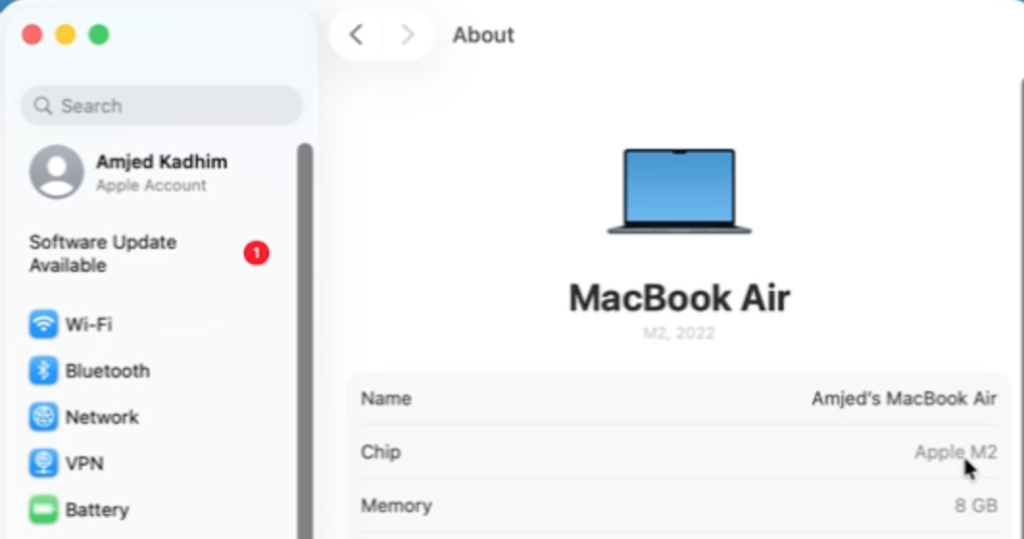
If you’re unsure, a quick online search of your chip name will confirm it.
Step 2: Download the App
Click on one of the two links below to select the version that matches your Mac’s chip type.
The installer file will download to your computer
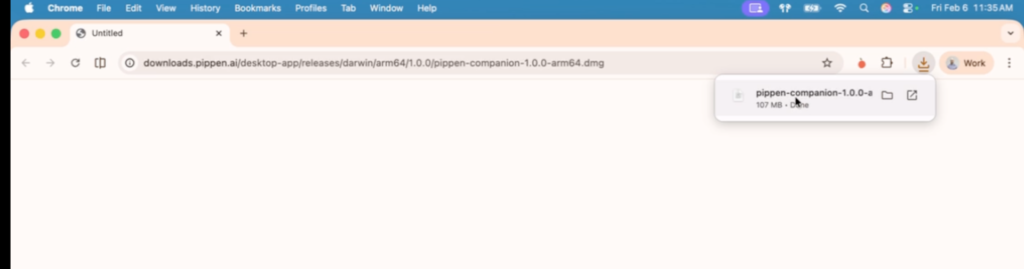
Double-click the downloaded file to open it
Step 3: Install Pippen Companion
- A window will appear showing Pippen Companion
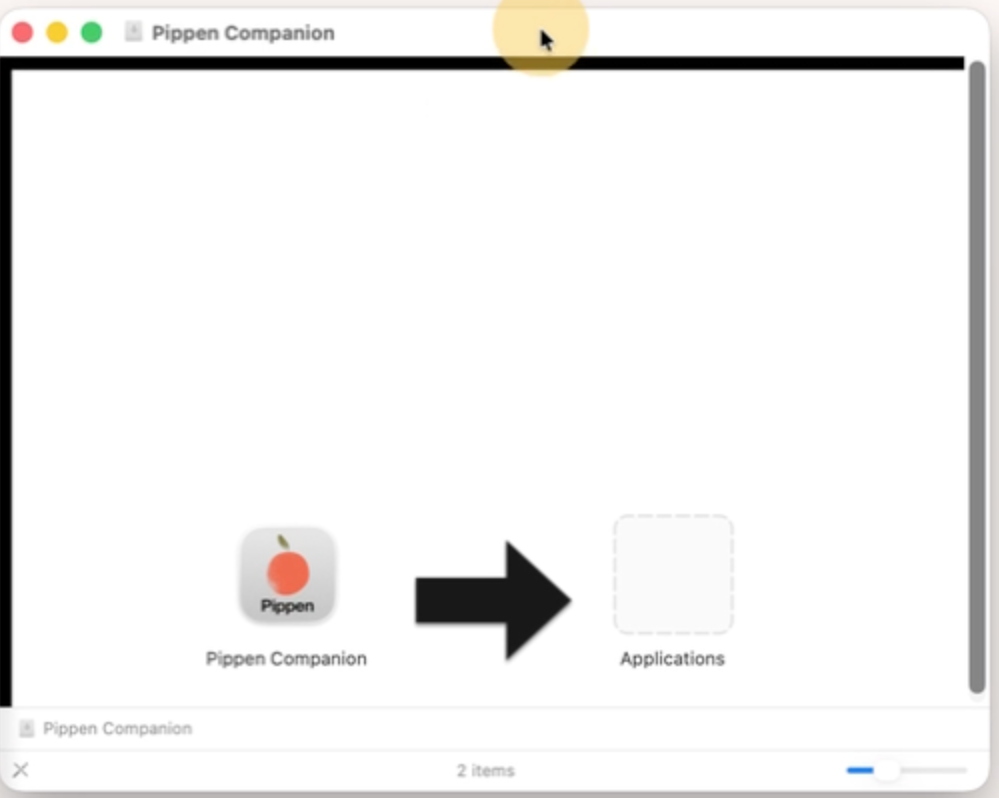
- Drag Pippen Companion into your Applications folder
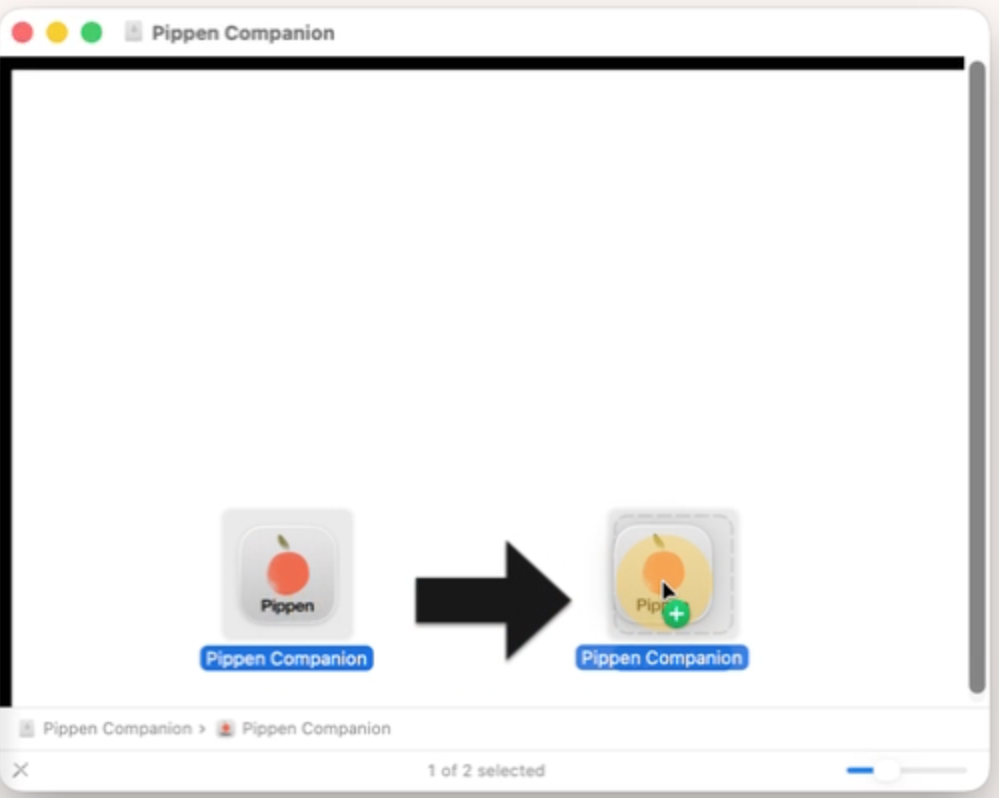
3. Close the window once the transfer is complete
4. Optional) Right-click the installer and select Eject
Step 4: Open the App
- Open Finder → Applications
- Double-click Pippen Companion
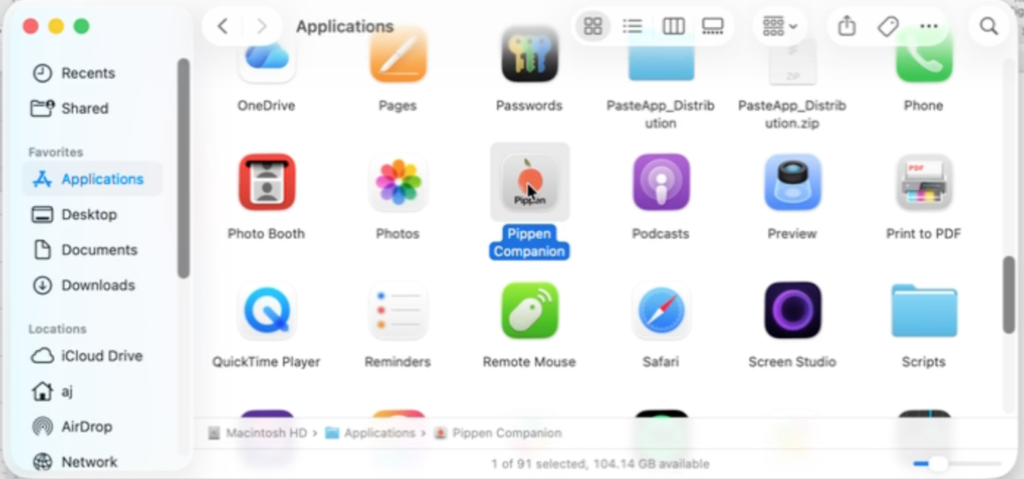
- If prompted with a security message (“This app was downloaded from the internet”), click Open
Step 5: Grant Accessibility Permissions (Required)
Pippen Companion requires accessibility permissions to function correctly.
- When prompted, click Open System Settings
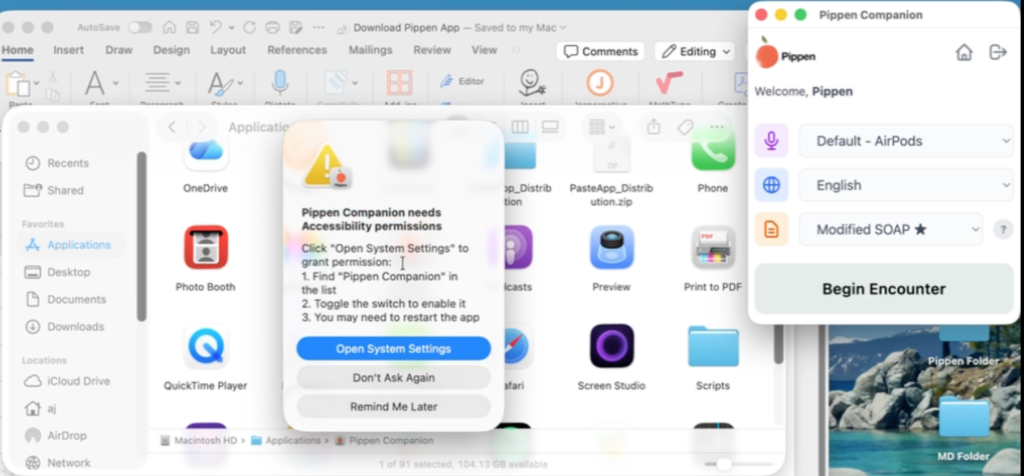
- Locate Pippen Companion in the list
- Toggle it ON
- Enter your Mac password if prompted and click Modify Settings
Important: Without this permission enabled, the app will not work properly.
Step 6: You’re All Set
Once permissions are granted, Pippen Companion is ready to use immediately.
Please refer to the installation video below for a step-by-step walkthrough on how to install the Pippen Companion App on MacOS.
How to Install the Pippen Companion App on MacOS
Setting up and using the Pippen toolbar
Step 1: Downloads
First you need to download the toolbar and reminder files here (click on each of the links below and save a copy on a location on your computer, such as Desktop):
Pippen AI Toolbar (custom form).
Pippen AI Toolbar reminder (to display the toolbar in the chart).
PS Suite Toolbar Installation
Once you download the files above, you can proceed with the installation on PS Suite EMR:
Step 2: Install the Custom Form
- Open any patient chart in PS Suite.
- Click Settings → Edit Custom Forms.
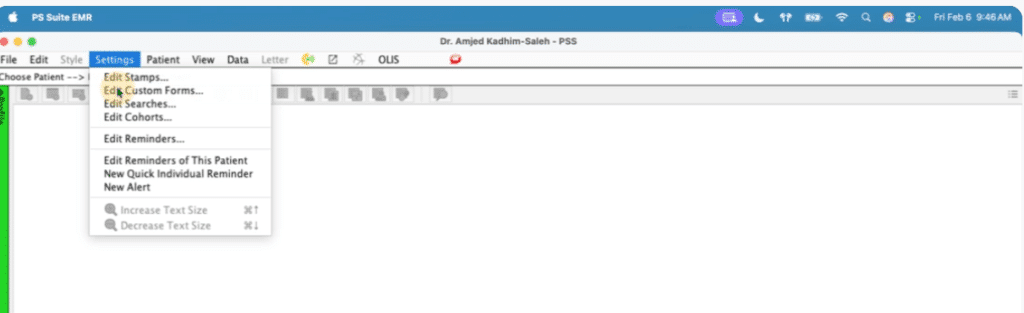
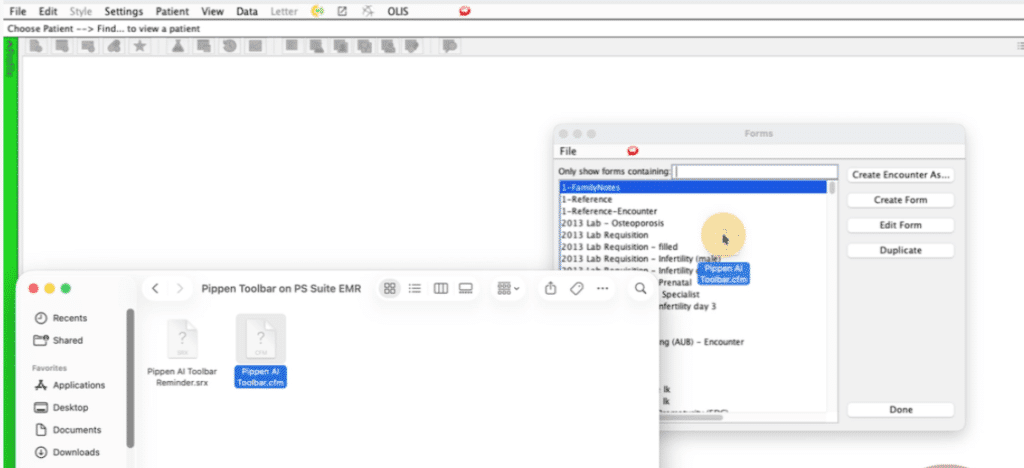
- Drag “Pippen AI Toolbar.cfm” into the open window
or
Click File → Import Form and select the file.
Step 3: Install the Reminder
In order to make sure the toolbar shows up in an individual patient chart, you must also install the ‘Reminder’ file.
- Open any patient chart in PS Suite.
- Click Settings → Edit Reminders.
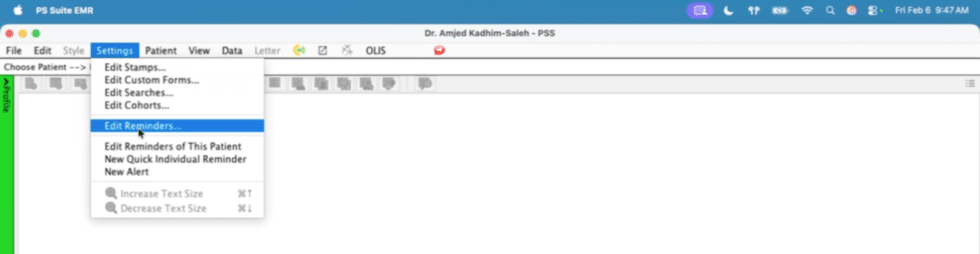
- Drag “Pippen AI Toolbar Reminder.srx” into the open window
or
Click File → Import Form and select the file.
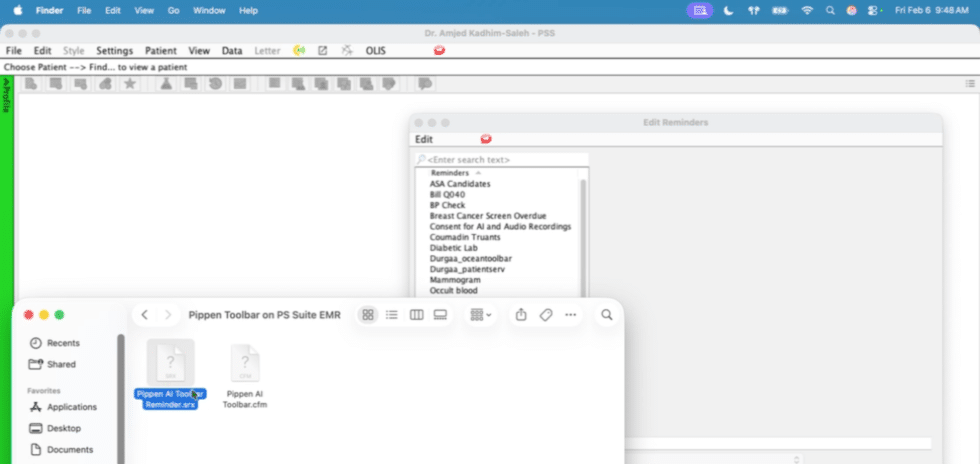
Once both steps are complete, the toolbar should be available for use.
Below is a video that walks you through step by step exactly how to download these files! Give it a watch. And as usual, if you have any questions, please contact the Pippen team at team@pippen.ai or within the in-app chat box.
Best regards,
The Pippen Team

 I 100 percent recommend this to any family physician. I didn't realize how cumbersome charting had become until Pippen eliminated it as a burden for me. My days are immeasurably more enjoyable and I am able to deliver better care to my patients. Pippen takes my feedback to constantly improve my notes. Because of Pippen my workdays are a breeze whereas before they were a tsunami of paperwork