Pippen Product Updates: Mobile Apps, Chrome Extension Improvements, and an Upgraded Model
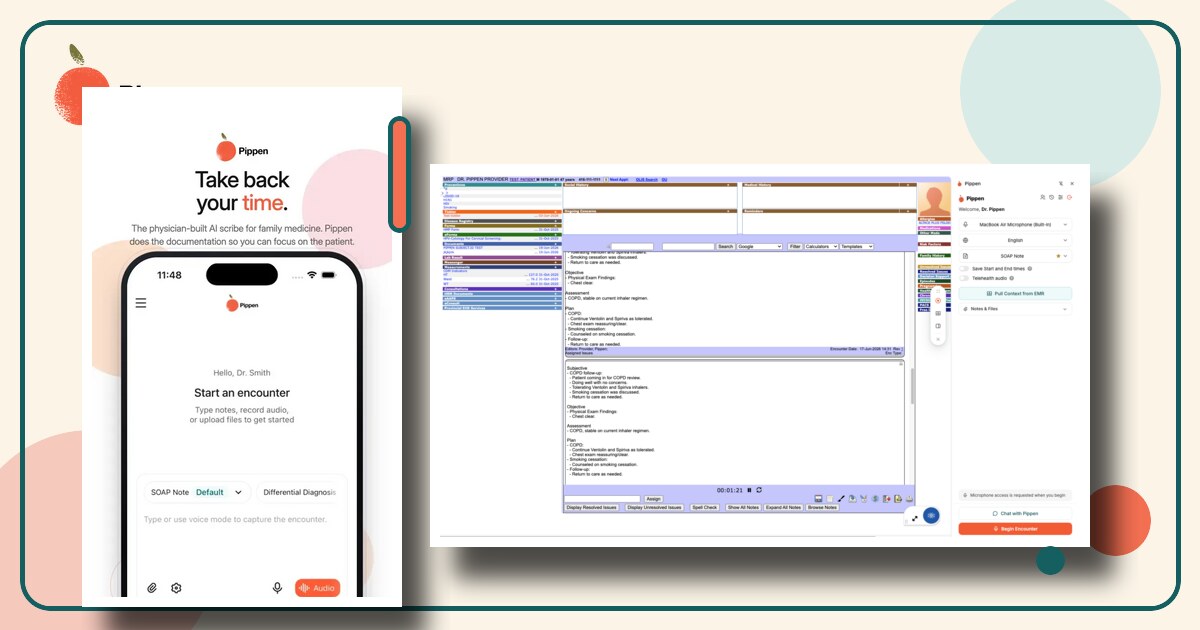
Pippen is now available as a dedicated mobile app on iPhone and Android. We have also improved the Chrome extension for browser-based EMRs and upgraded the model that powers Pippen’s documentation and clinical-assistance workflows.
In this webinar, Pippen co-founders Mary Aglipay and Dr. AJ Kadhim-Saleh demonstrate the updates, explain why they were built, and answer practical questions from Canadian physicians. You can watch the full recording below or use this written guide to move through the highlights.
The updates at a glance
- Pippen Mobile is available on iPhone and Android. It gives clinicians a more direct, portable way to record encounters and access Pippen from a trusted personal device.
- The Chrome extension has more flexibility and better EMR context. Clinicians can change templates during an encounter, and timestamps help Pippen distinguish previous chart information from today’s visit.
- Pippen’s model has been upgraded. It processes notes faster, follows instructions more consistently, and reasons more effectively with clinical context.
- Each Pippen experience connects to the same account. You can use the mobile app, web app, Chrome extension, and Companion App in whichever combination best fits your day.
1. Pippen Mobile for iPhone and Android
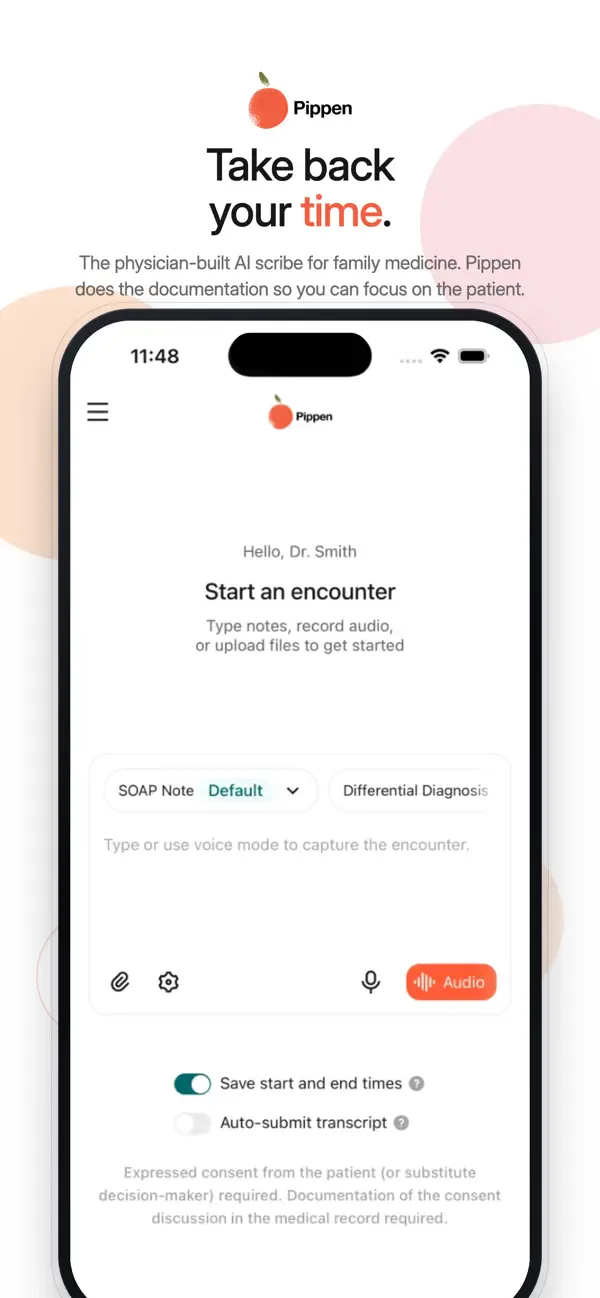
Pippen has always worked in a mobile browser. The new mobile apps make that experience more direct: open Pippen from your home screen, sign in on a trusted device, and begin an encounter using the phone’s built-in microphone.
The goal is portability. Family physicians and other clinicians do not always work from one desk or one exam room. A dedicated mobile app can be especially useful for:
- Moving between rooms in a busy clinic or walk-in setting.
- Home visits and long-term care visits.
- Emergency department or other mobile clinical workflows.
- Keeping the recording device close while the desktop remains focused on the EMR.
How to download the mobile app
- Download Pippen directly from the App Store or Google Play using the official links below.
- Install the app and sign in.
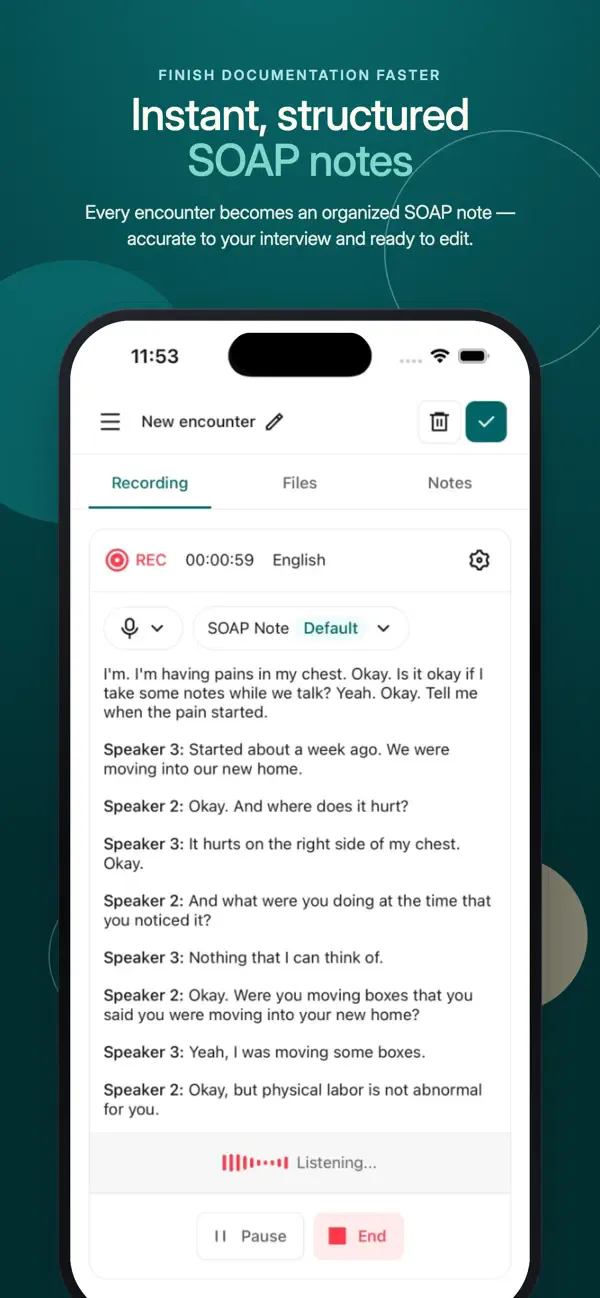
- Select Audio, confirm the template, and begin the encounter.
- End the recording when the encounter is complete and review the generated note.



Does the mobile app work on the Free tier?
Yes. The Free tier includes unlimited AI scribing, including through the mobile app. Premium adds the broader set of Pippen tools, such as additional templates, referral drafting, document uploads, billing and diagnostic code support, and Chat with Pippen.
New signups begin with a 30-day Premium trial and then automatically move to the Free tier if they do not subscribe.
2. Chrome extension improvements for browser-based EMRs
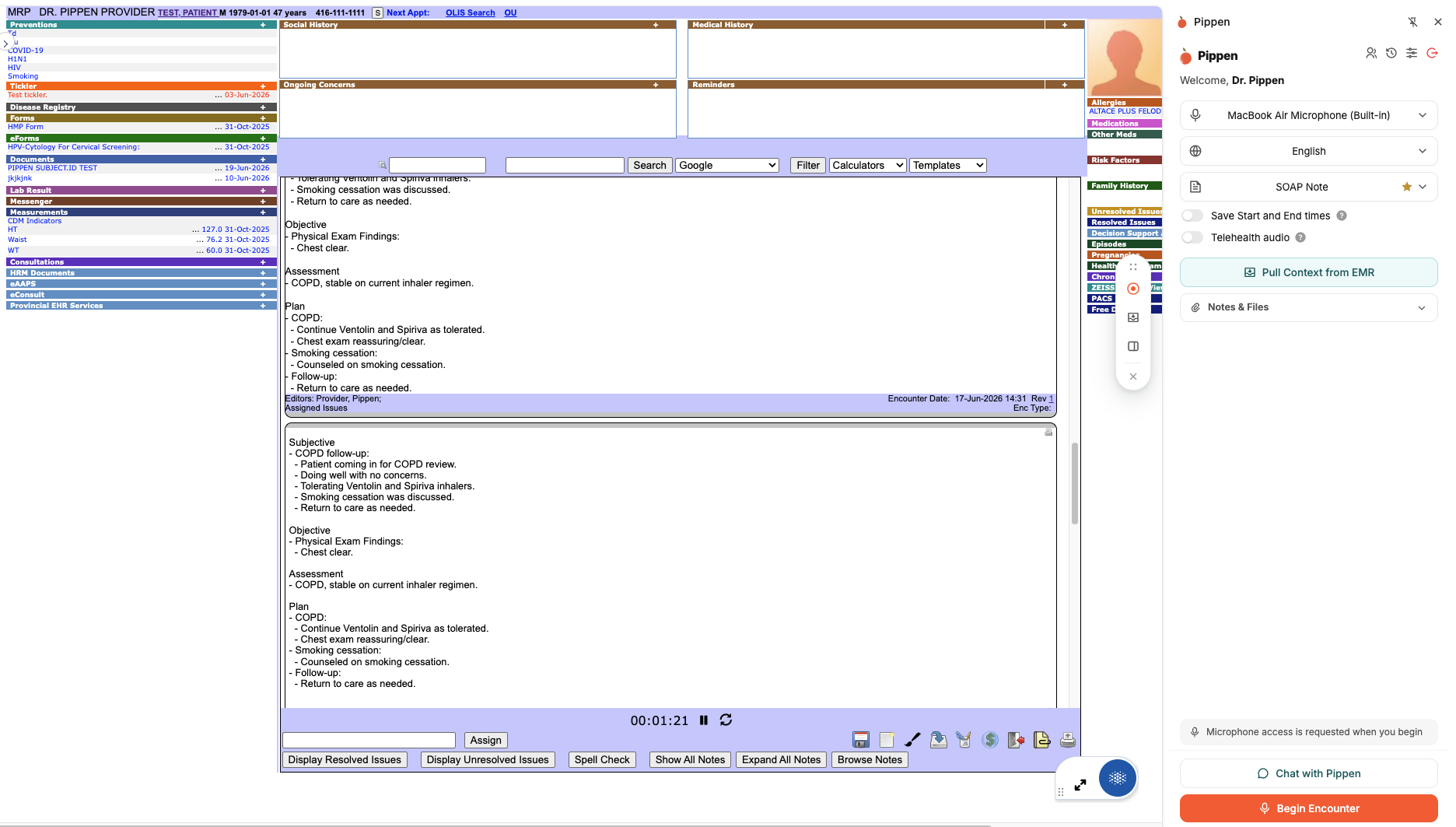
The updated Chrome extension is designed to keep Pippen beside a browser-based EMR so clinicians can work in one environment rather than moving between tabs.
During the webinar, we demonstrated the extension in Oscar Pro. The same core workflow applies to supported browser-based EMRs such as CHR and Jane:
- Open the patient chart.
- Launch the Pippen extension as a side panel.
- Optionally pull relevant context from the visible EMR chart.
- Begin the encounter and record as usual.
- End the recording and review the generated note.
- Transfer the note back into the EMR.
Change templates during the encounter
A visit does not always follow the expected structure. You may begin with a SOAP note and realize that a telephone, counselling, or another template better fits the conversation.
The Chrome extension now lets you change the template during the recording. You can also apply a different template after the encounter if you want to regenerate the note in another structure.
Better time context from the EMR
When Pippen pulls context from a supported EMR, timestamps help distinguish historical chart information from today’s encounter. For example, Pippen can recognize that a previous periodic health examination belongs to an earlier visit while the current conversation contains today’s assessment and plan.
This gives the model clearer source context and reduces the need to repeat historical details aloud in front of the patient.
For a more detailed installation and workflow guide, read Using Pippen Inside Oscar Pro, CHR, and Other Browser-Based EMRs.
3. Using Pippen with PS Suite
PS Suite is not browser-based, so it uses a different integration approach. Pippen’s Companion App works alongside PS Suite on Mac and Windows, and the Pippen toolbar lets clinicians launch the app from within the EMR workflow.
The demonstrated workflow was:
- Open the patient chart in PS Suite.
- Select Launch App from the Pippen toolbar.
- Record the encounter in the Companion App.
- End the recording and review the generated note.
- Place the cursor in the intended PS Suite field.
- Select Transfer Note to insert the note where the cursor is located.
Unlike the browser extension workflow, PS Suite does not currently support the same automated chart-context pull. It does support launching Pippen from the PS Suite workflow and transferring generated notes back into the chart.

4. An upgraded model for faster, more consistent output
The model update applies across Pippen’s workflows. In the webinar demonstration, a complex multi-issue transcript was processed into a structured note, then reused to draft a focused referral letter and an action plan.
The practical improvements are:
- Faster note generation after an encounter ends.
- Better understanding of clinical context.
- More consistent instruction-following.
- Less need to make every prompt overly detailed or explicit.
- Stronger continuity between the encounter, generated note, referrals, and follow-up questions.
This matters because speed alone is not enough. The useful measure is how quickly a clinician can move from the end of the conversation to a note that is ready to review, edit if needed, and transfer into the EMR.
5. Uploading documents and adding encounter context
Pippen can also work with files and supporting context. In the webinar, AJ demonstrated two related workflows.
Summarize a document
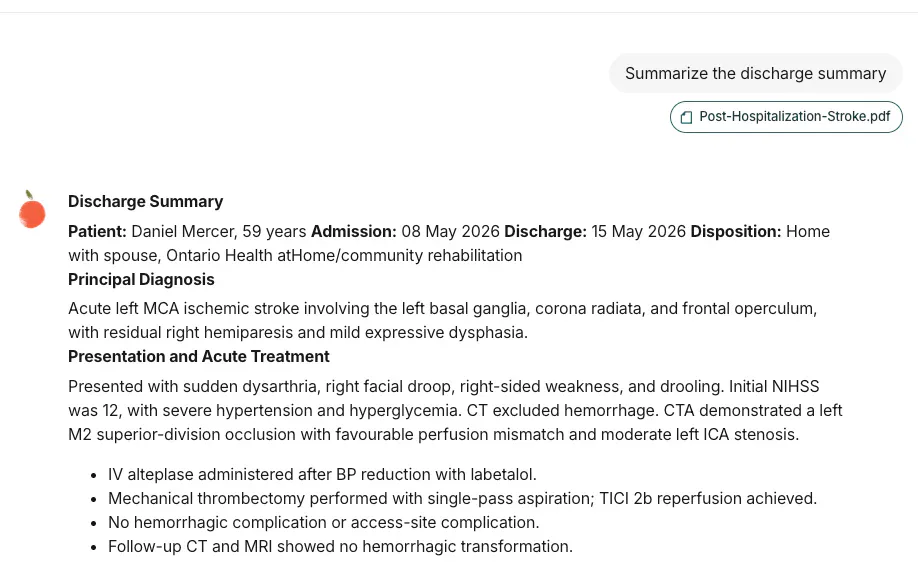
On the web app, drag and drop a PDF or image into Pippen, then ask for a summary. The demonstration used a hypothetical multi-page referral package containing clinical notes, laboratory results, imaging, and return-to-work information.
Use a document as context for an encounter
A discharge summary, referral package, or other relevant document can be added to the encounter context before recording. Pippen can use that material alongside the clinical conversation, so the physician does not have to read every detail aloud.
Clinicians can also add written observations that should not be spoken in front of the patient, such as components of a mental status examination.
Which Pippen experience should I use?
You do not have to choose only one. Every experience connects to the same Pippen account, so the best setup may change during the day.
A physician might record on mobile throughout clinic and review or transfer notes from the web app later. Another may stay in the Chrome extension for a browser-based EMR. A PS Suite user may rely primarily on the Companion App. The purpose is to reduce friction rather than impose one workflow.
Frequently asked questions from the webinar
Can I use Pippen for free if I already subscribe to another AI scribe?
Yes. New Pippen accounts include a 30-day Premium trial. After the trial, the account automatically moves to the Free tier rather than becoming locked. The Free tier includes unlimited AI scribing.
Can I create my own templates?
Yes. Pippen includes starter templates designed for common primary care workflows, and clinicians can create custom templates with their preferred headings and instructions. You can change templates before, during, or after an encounter.
Does Pippen automatically choose the template?
Not currently. The clinician chooses the template, with the flexibility to switch it at any point in the workflow.
How long is encounter data saved?
As explained in the webinar, audio recordings are automatically deleted. Transcripts, generated notes, and follow-up content remain available until the clinician deletes them. Clinicians can delete individual encounters or purge their history. Organization-level retention policies can also be accommodated for enterprise clients.
Can Pippen work with two-factor authentication in PS Suite?
Pippen works separately from the PS Suite login process. Once the clinician has authenticated and opened PS Suite, including through the clinic’s usual two-factor authentication process, the Pippen integration can be used alongside it.
Try the updates in your own workflow
The best way to evaluate these updates is to try them during the work they were designed to support: moving between clinical spaces, documenting inside an EMR, processing a complex encounter, or working from a referral package.
Visit the Pippen Downloads page to install the mobile app, Chrome extension, or Companion App.
If you have questions or would like help setting up your workflow, reach us at team@pippen.ai.
Schedule a one-on-one demo here.