


No matter which EMR you use, the Pippen Companion App allows you to use Pippen without ever navigating away from your EMR (fewer clicks! Less toggling between windows!). Here are the steps below to install and set it up properly.
(Using Windows? View the Windows installation guide here)
Step 1: Check Your Mac’s Chip Type
Pippen Companion has different versions depending on your Mac’s processor.
- Open System Settings
- Go to General → About
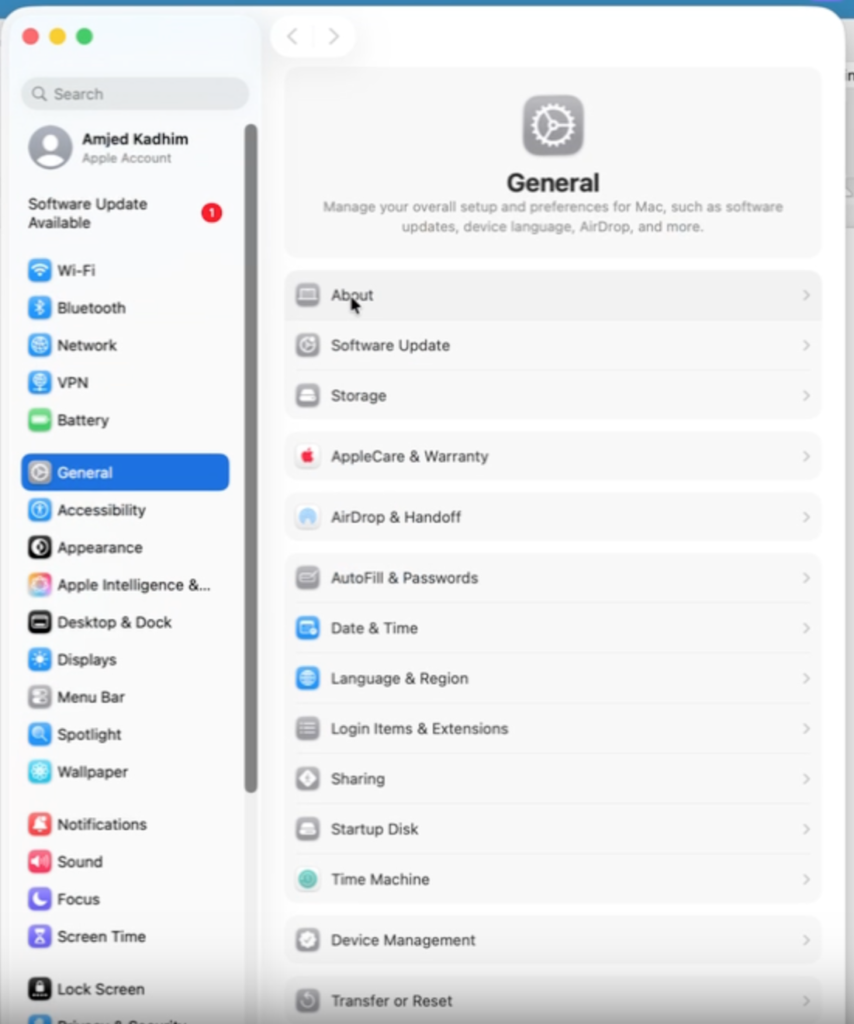
- Look for Chip
- Apple Silicon includes chips such as M1, M2, M3, or M4
- Older Macs may list Intel
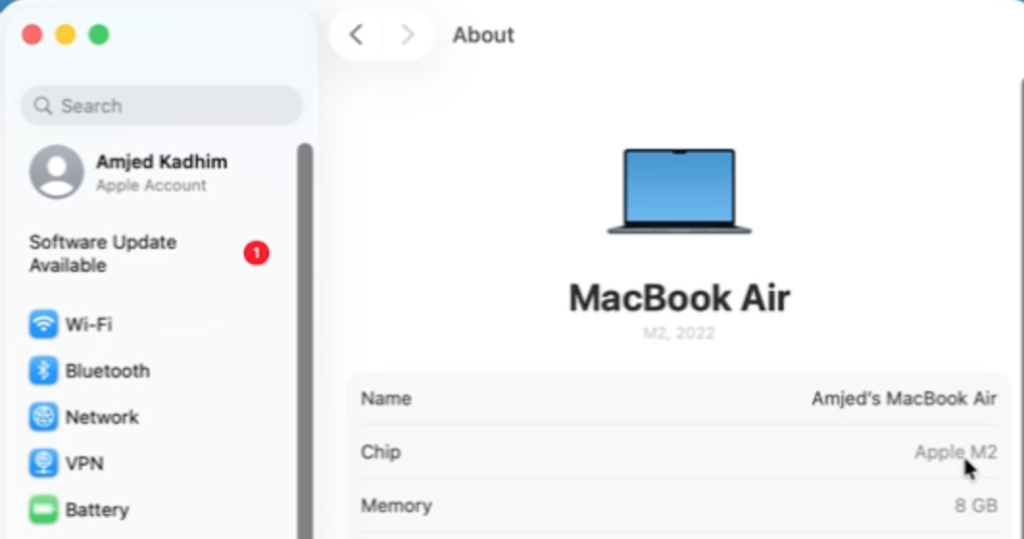
If you’re unsure, a quick online search of your chip name will confirm it.
Step 2: Download the App
Click on one of the two links below to select the version that matches your Mac’s chip type.
- The installer file will download to your computer
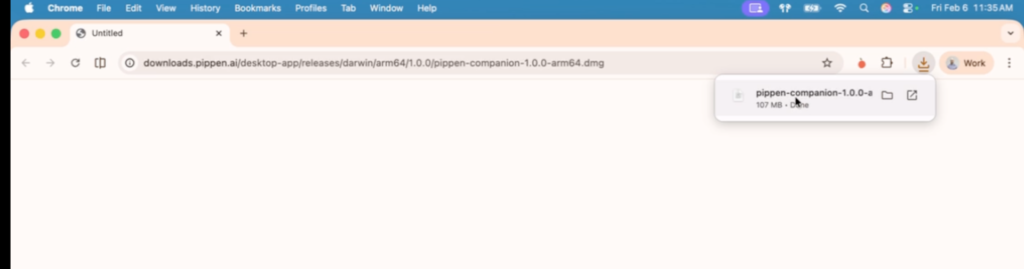
- Double-click the downloaded file to open it
Step 3: Install Pippen Companion
- A window will appear showing Pippen Companion
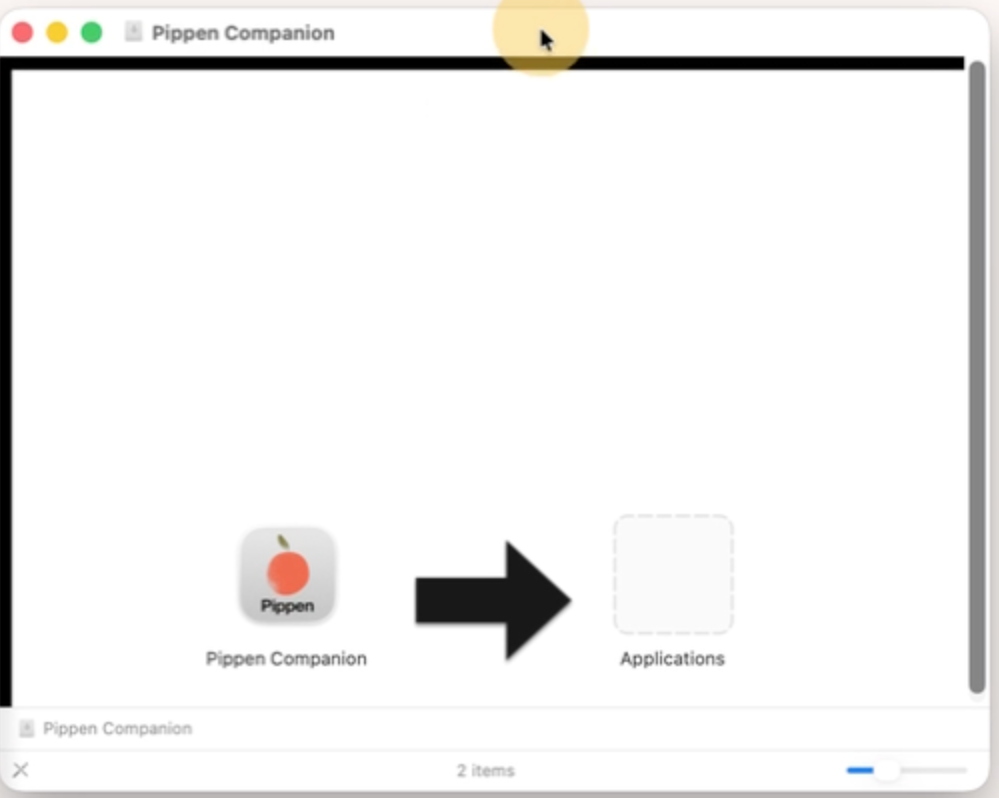
- Drag Pippen Companion into your Applications folder
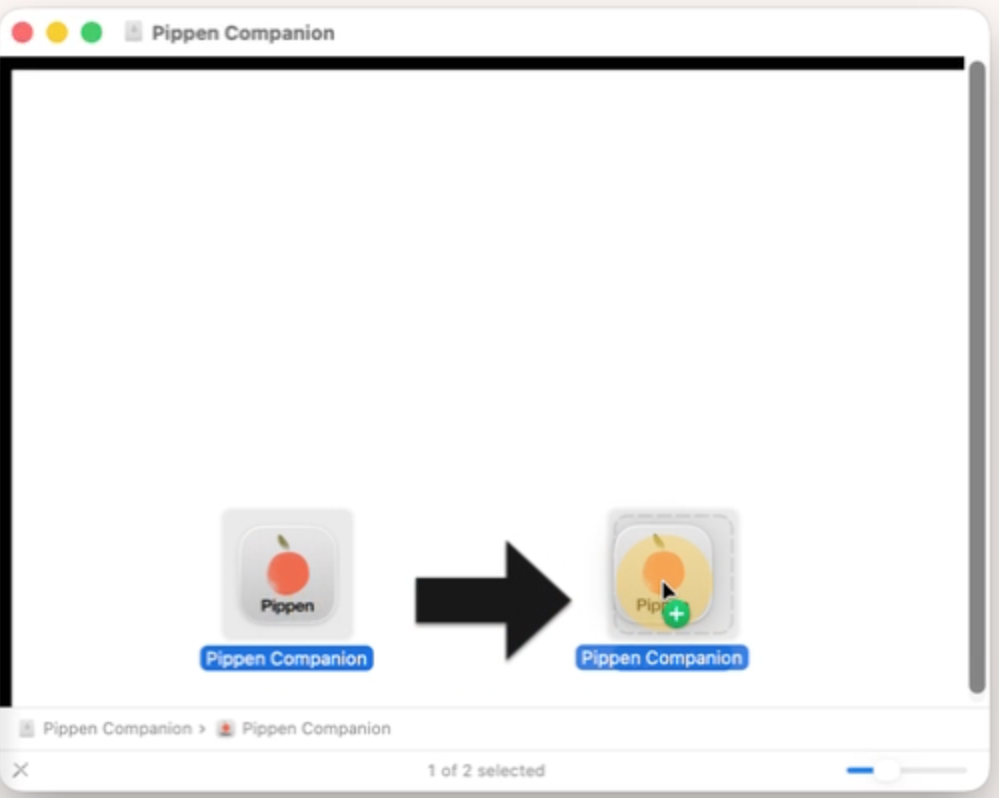
- Close the window once the transfer is complete
- (Optional) Right-click the installer and select Eject
Step 4: Open the App
- Open Finder → Applications
- Double-click Pippen Companion
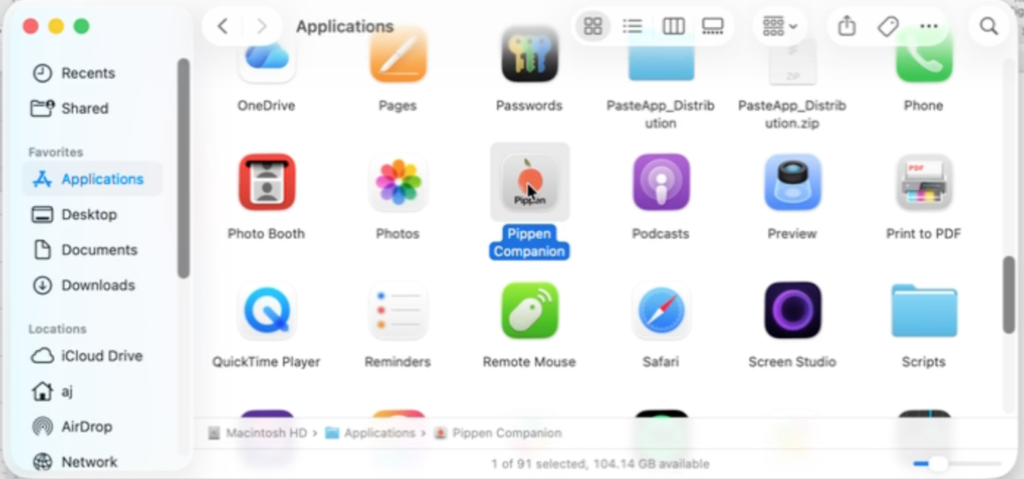
- If prompted with a security message (“This app was downloaded from the internet”), click Open
Step 5: Grant Accessibility Permissions (Required)
Pippen Companion requires accessibility permissions to function correctly.
- When prompted, click Open System Settings
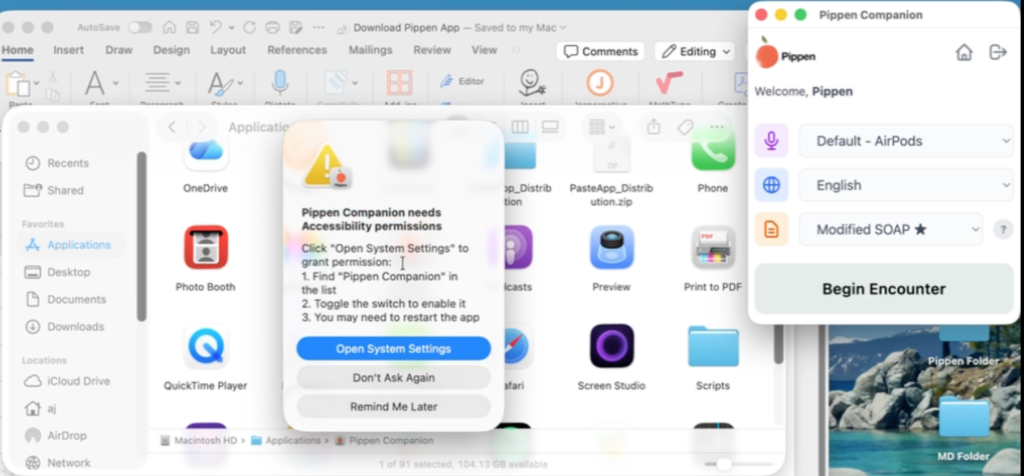
- Locate Pippen Companion in the list
- Toggle it ON
- Enter your Mac password if prompted and click Modify Settings
Important: Without this permission enabled, the app will not work properly.
Step 6: You’re All Set
Once permissions are granted, Pippen Companion is ready to use immediately.
Please refer to the installation video below for a step-by-step walkthrough on how to install the Pippen Companion App on MacOS.
How to Install the Pippen Companion App on MacOS
If you have any questions or need assistance, please reach out to us at
team@pippen.com
Thank you for choosing Pippen!
Best regards,
The Pippen Team

 I 100 percent recommend this to any family physician. I didn't realize how cumbersome charting had become until Pippen eliminated it as a burden for me. My days are immeasurably more enjoyable and I am able to deliver better care to my patients. Pippen takes my feedback to constantly improve my notes. Because of Pippen my workdays are a breeze whereas before they were a tsunami of paperwork