


As part of Pippen’s latest update, templates in the Customizations tab are now organized using different tags to help you quickly understand how they fit into your workflow. These tags are designed to make template management clearer—showing you where each template comes from, how it’s meant to be used, and how it supports your day-to-day practice.
Where to Find Templates
All templates live in the Customizations tab in Pippen.
You can view them in:
- Grid view (card-style layout), or
- List view (more compact)
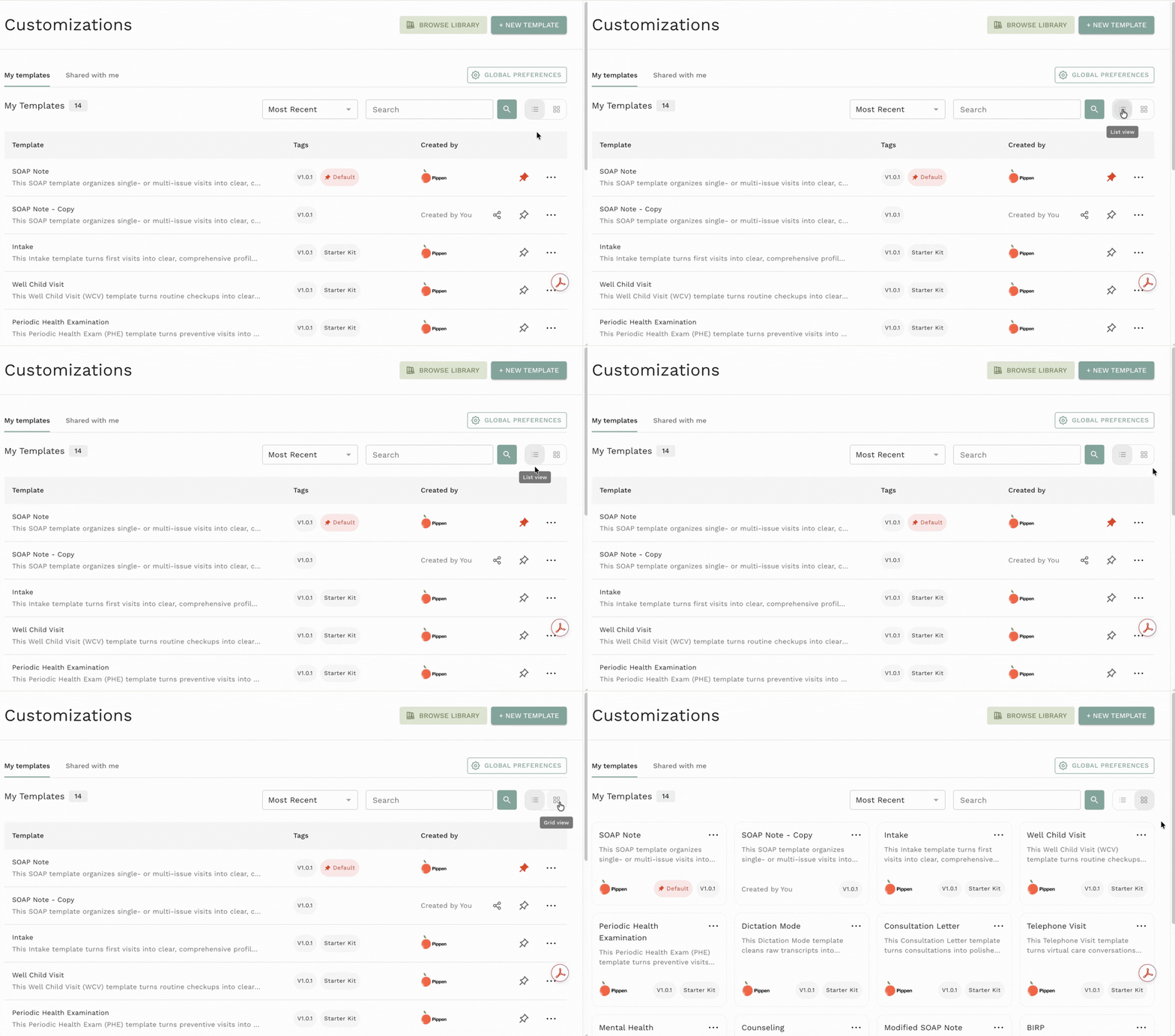
While the layout may look different depending on your preference, the template tags help you understand your templates at glance.
1. Starter Kit Templates: Your Ready-to-Use Essentials
Starter Kit templates are the foundation of your workflow.
These are:
- Automatically added to ‘My Templates’
- Designed for everyday clinical use
Think of these as your default toolkit—ready to use from day one and built to support most clinical scenarios. These templates are your ready-to-use essentials.
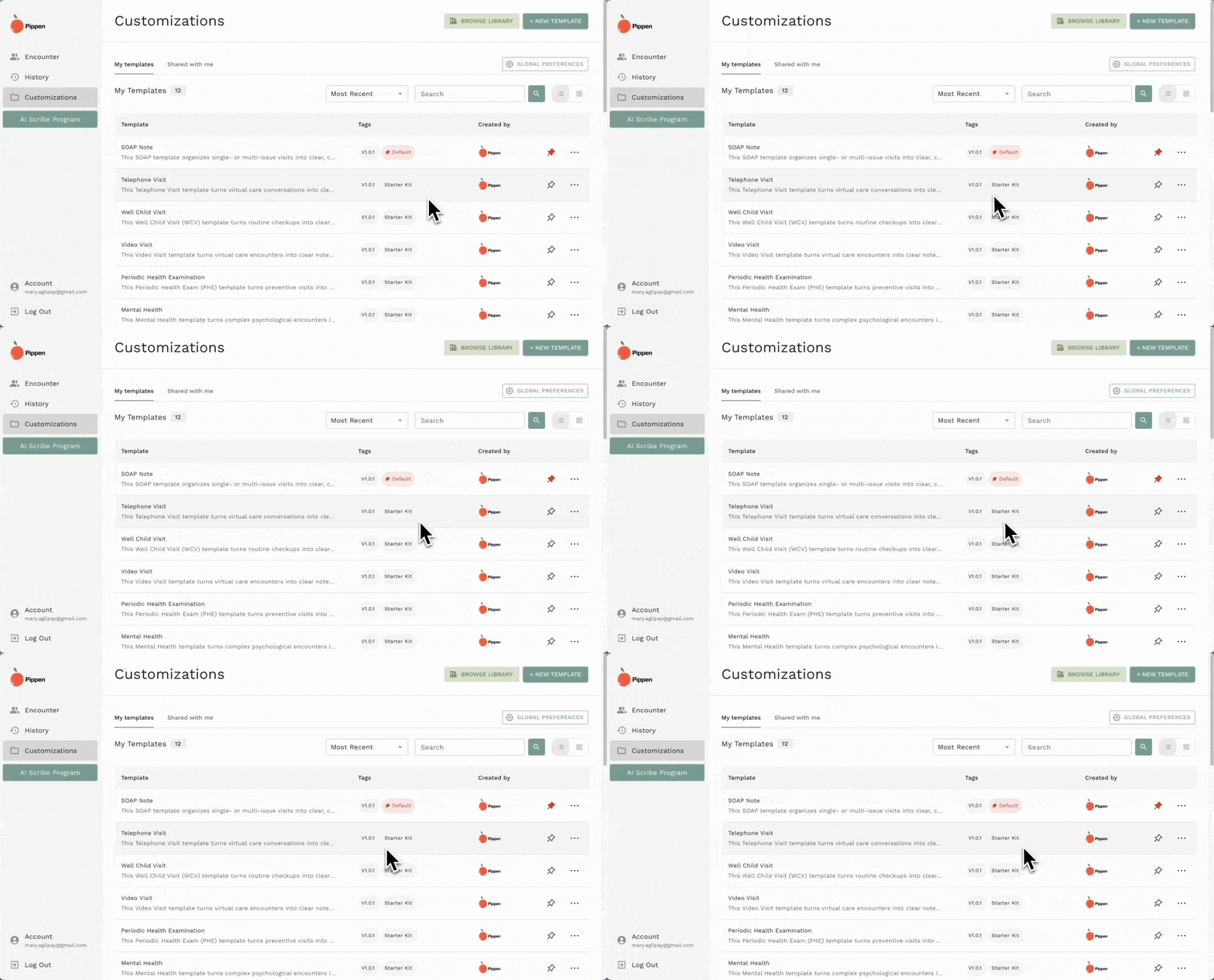
Examples include:
- SOAP note
- Modified SOAP note
- Mental health template
- Intake template
- Well-child visit
- Counseling template
- Telephone visit
- Periodic health exam
- Patient summary / handout
2. Library Templates: Expand Your Toolkit
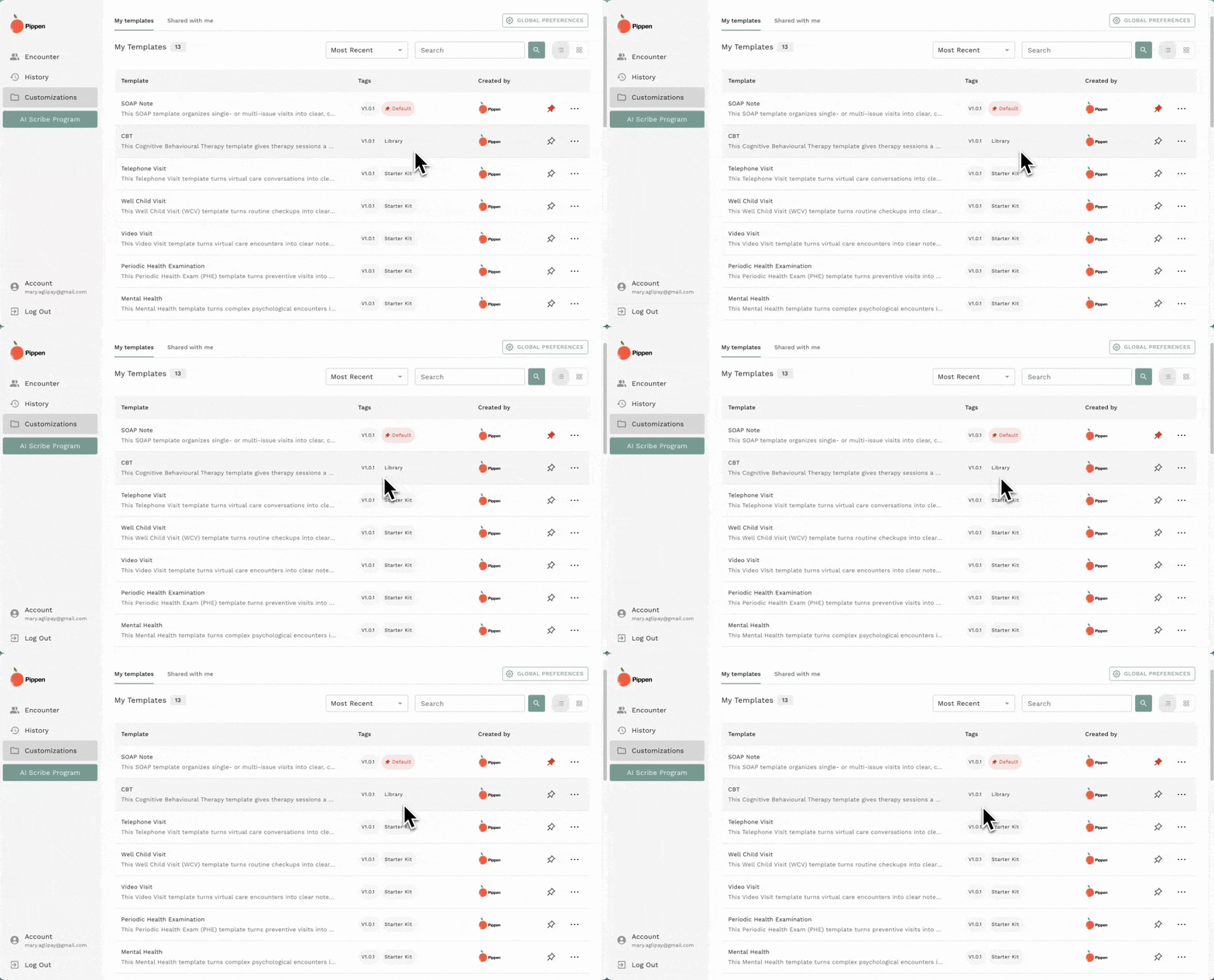
Library templates are available in Pippen’s broader template library but are not automatically added to your account.
Instead, you can:
- Browse the template library
- Select a template
- Add it to your workspace
Once added, the template will appear in your account under the Library tag. This approach ensures that you only add templates that are relevant to your specific practice or specialty.
3. Legacy Templates: Your Original Work (Still Works!)
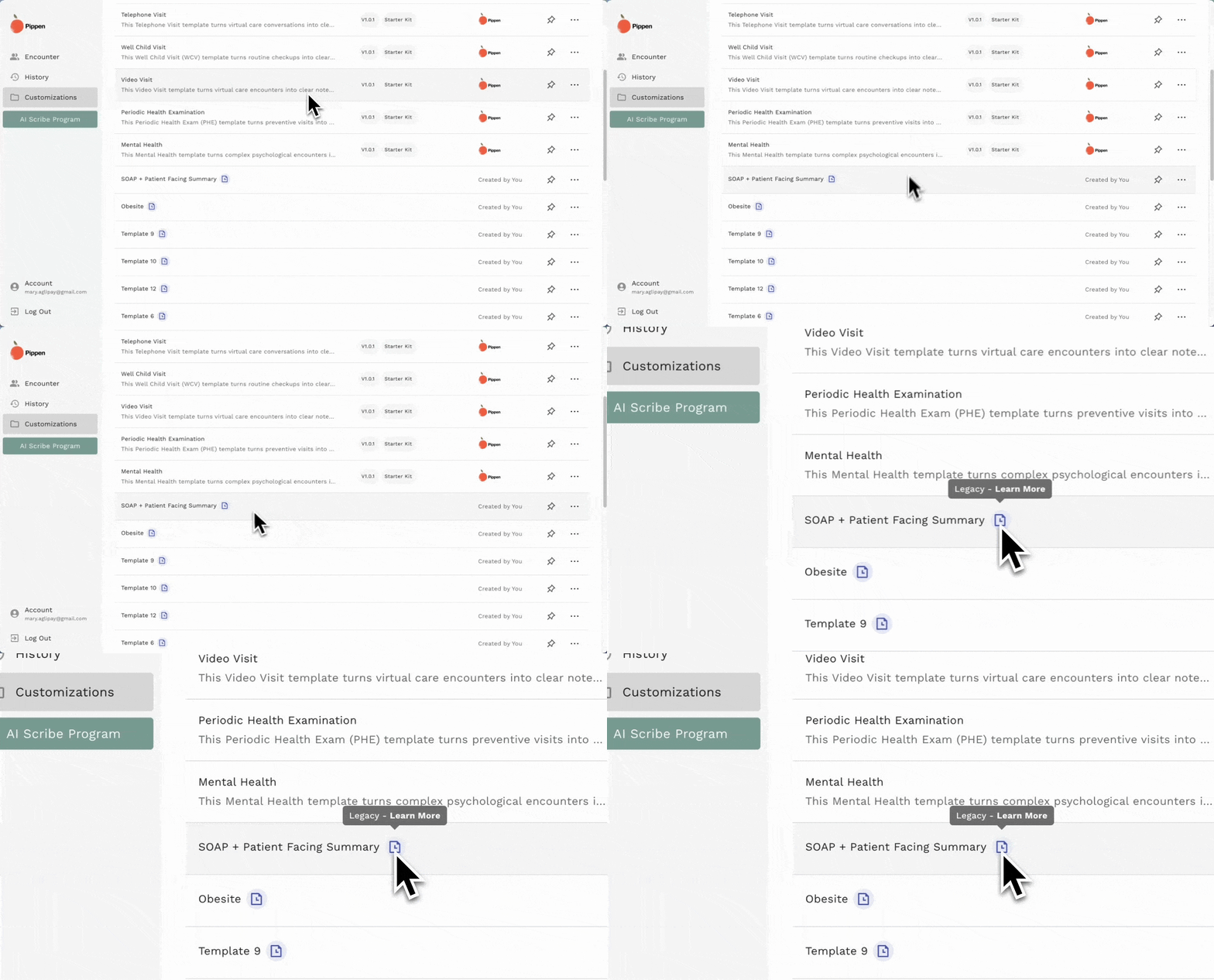
Legacy templates are templates that were created before the introduction of the new Customizations Tab. You’ll see these grouped under the Legacy tag. Most importantly, they still work exactly as before.
The Legacy tag simply indicates:
- The template was created under an older system
- There may now be newer versions or alternatives available
4. Newly Created Templates
Templates that you have created yourself are labelled as ‘Created By You’.
These are created using the “New Template” feature and are fully customizable to your needs.
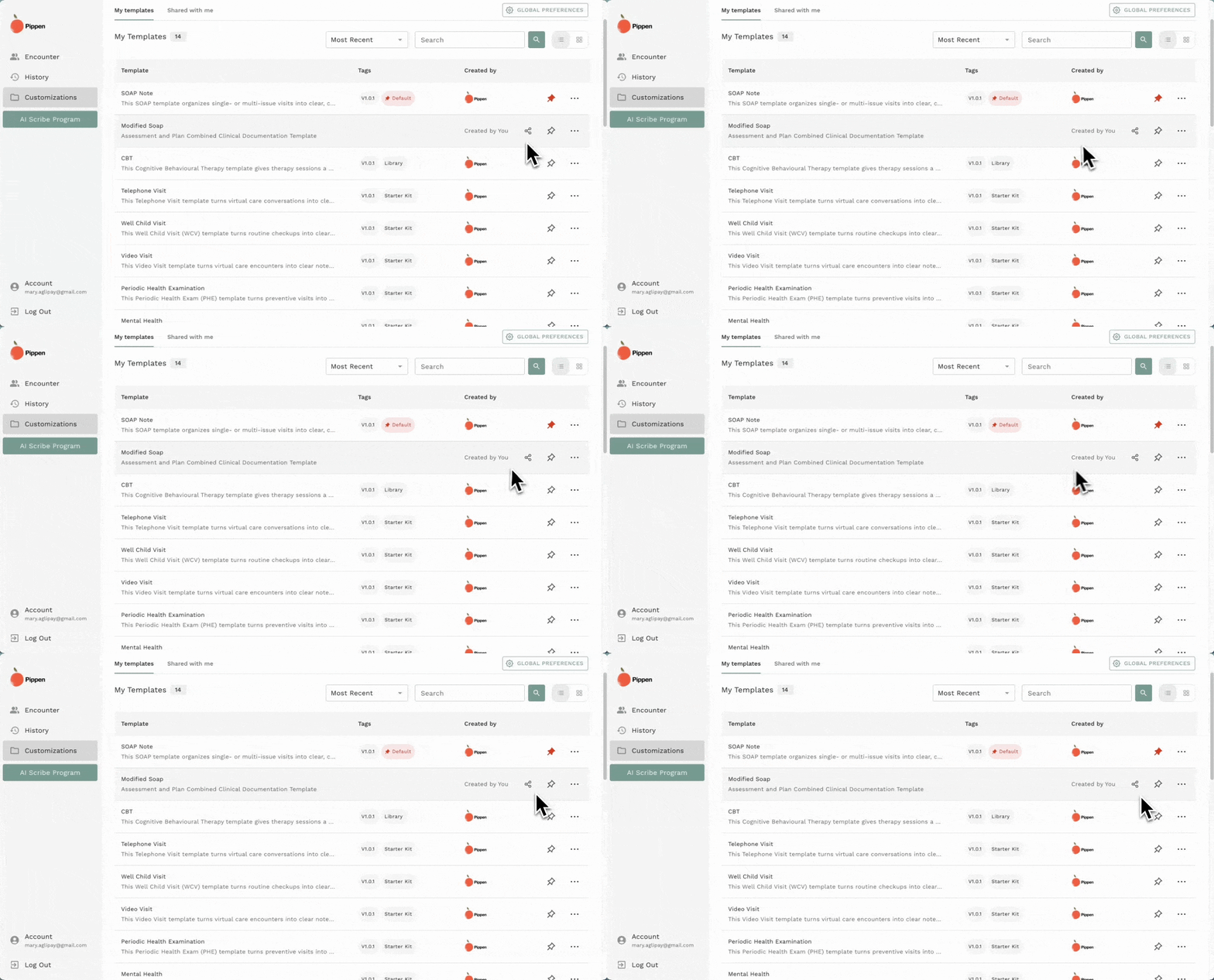
5. Template Versioning
Templates now include version numbers to reflect ongoing improvements. As models evolve and templates are refined, you’ll have the option to update to a newer version or continue using your current one—giving you flexibility without disrupting your workflow.
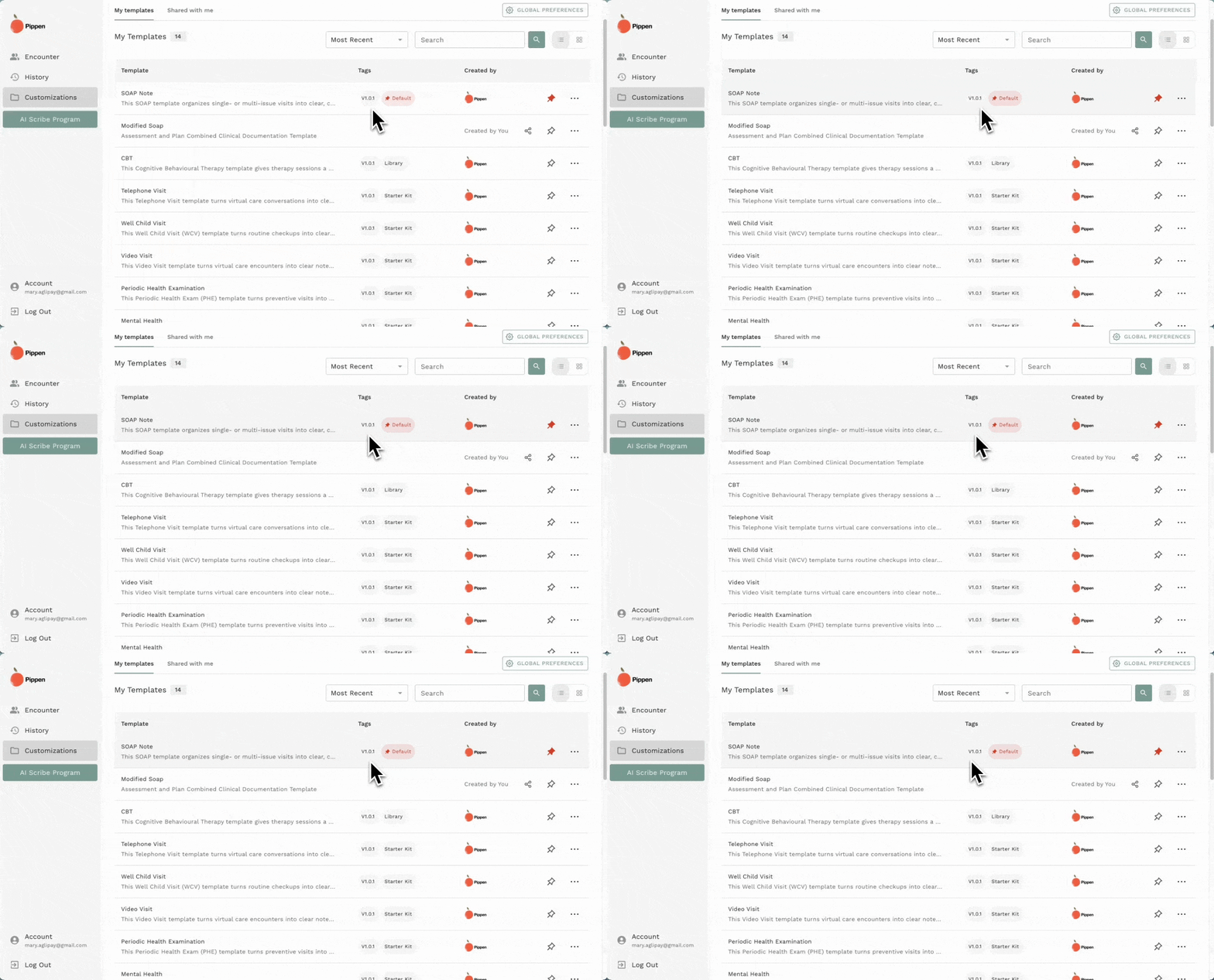
Bringing It All Together
Here’s a simple way to think about the different template tags:
- Starter Kit tag → Automatically added essentials
- Library tag → Optional templates you can browse and add
- Legacy tag → Older templates you created (still fully functional)
- No tag (but labelled as ‘Created by You’→ New templates you’ve created yourself
Watch the video below for walkthrough.
A System That Evolves With You
Pippen’s template system is continuously evolving to better support your workflow. Starter Kit templates are regularly refined, the Library continues to expand, and your custom templates grow alongside your practice.
If there’s a template you’d like to see, we’d love to hear from you—many of our best templates come directly from clinician feedback.
Templates aren’t just a feature—they’re the foundation of how Pippen adapts to your practice. Understanding how template tags work helps you work more efficiently, customize with confidence, and get more value out of every patient encounter.

 I 100 percent recommend this to any family physician. I didn't realize how cumbersome charting had become until Pippen eliminated it as a burden for me. My days are immeasurably more enjoyable and I am able to deliver better care to my patients. Pippen takes my feedback to constantly improve my notes. Because of Pippen my workdays are a breeze whereas before they were a tsunami of paperwork