How to Update Your Pippen Subscription and Payment Method

You can manage your Pippen subscription and payment method directly from your account. Follow the steps below to review your current plan, choose monthly or yearly billing, and add a payment method for future subscription charges.
Watch the walkthrough
Prefer to follow along on screen? This short video walks through the full process.
1. Open your account settings
From the main Pippen screen, select your profile card at the bottom-left of the navigation. The card displays your account name and email address with an arrow on the right.

Select your profile card at the bottom-left of the Pippen navigation.
2. Find your subscription
In your account settings, scroll down to the Subscription section. Your current plan and renewal schedule appear under Current Plan.
Select Manage to open your subscription-management page.

Select Manage beside your current subscription.
3. Choose Update subscription
On the subscription-management page, select Update subscription.
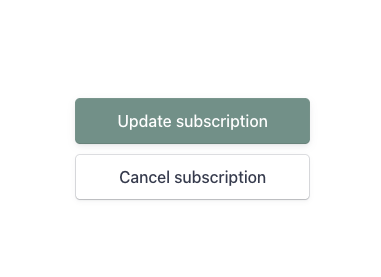
Select Update subscription to review your billing options.
4. Choose monthly or yearly billing
Use the Monthly and Yearly options at the top of the page to compare the available billing schedules.


After selecting the billing schedule you want, review the subtotal and select Continue. Follow the on-screen instructions to confirm the change.
The prices shown in these screenshots are examples. Refer to the subscription-management page for current pricing.
5. Add a payment method
In the Payment Method section, select Add payment method and enter the requested billing information.

Select Add payment method to add billing information to your account.
Keeping a valid payment method on your account allows subscription charges to be processed automatically and helps prevent interruptions to your Pippen subscription.
You’re all set
Once you have confirmed your subscription choice and added a valid payment method, your subscription settings are up to date.
If you have any questions or need help managing your account, reach us anytime at team@pippen.ai.
Schedule a one-on-one demo here.