


We are excited to introduce the Pippen Companion app and demonstrate how it integrates seamlessly with PS Suite EMR.
Here’s a quick overview of how to use the Pippen Companion app with PS Suite.
Getting Started
- Open a patient chart in PS Suite
- Click Launch App from the toolbar (works on both Windows and Mac)
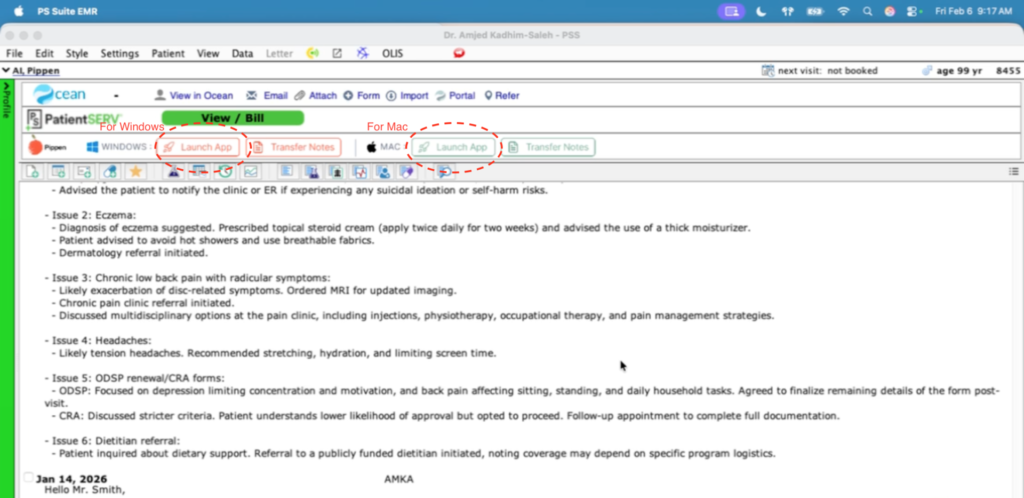
- Log in with your Pippen email and password (only once per day)
Main Screen Basics
Pippen takes up minimal screen space so you can continue working in the EMR.
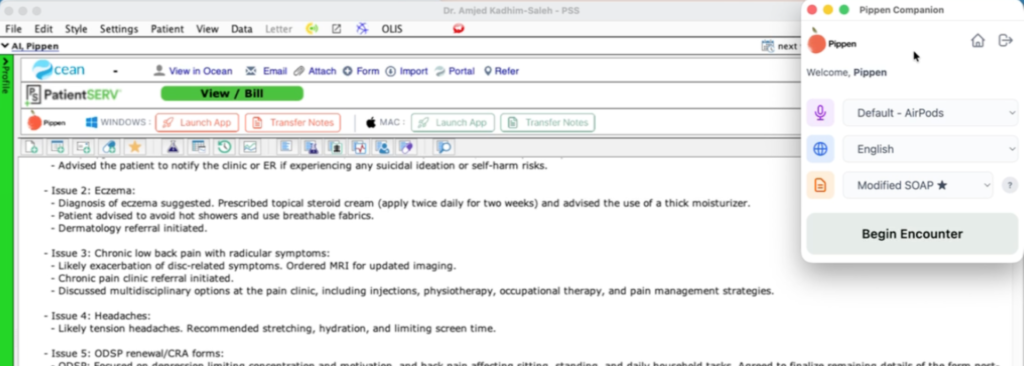
From the Companion app, you can:
- Select your microphone
- Choose the language for the encounter
- Select a note template (e.g. Modified SOAP)
Recording an Encounter
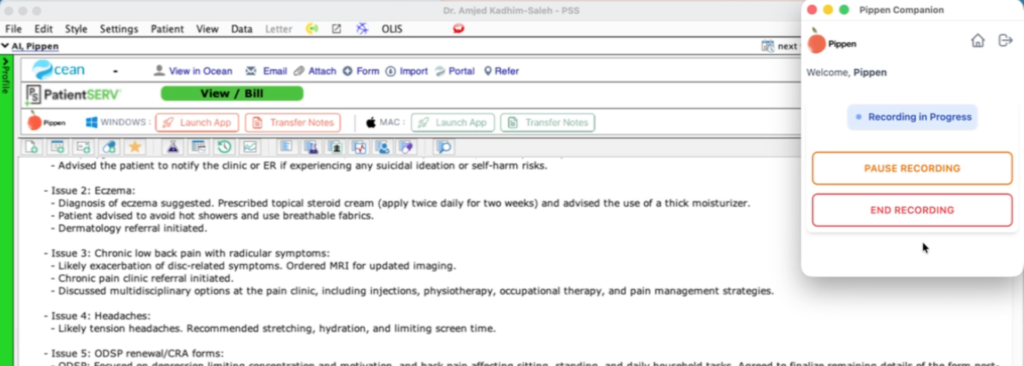
- Click Begin Encounter to start recording
- Conduct the visit as usual
- Click End Recording when finished
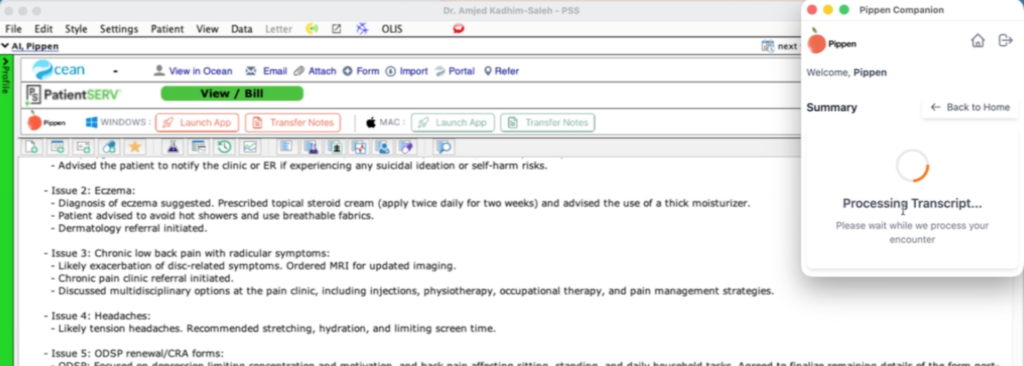
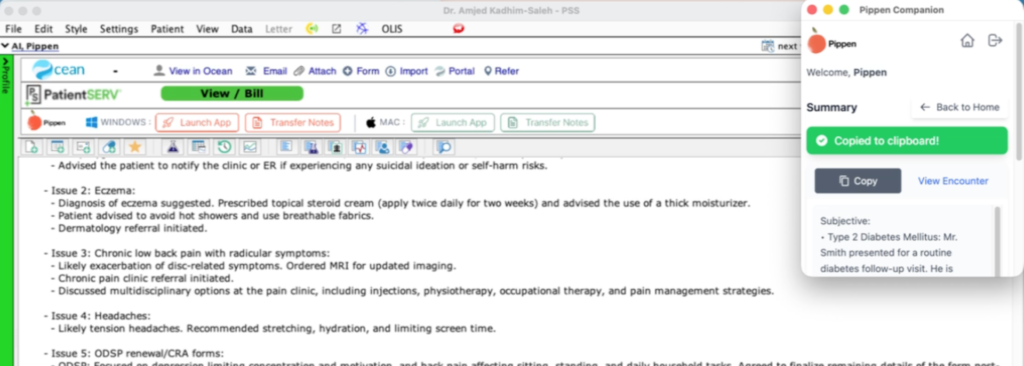
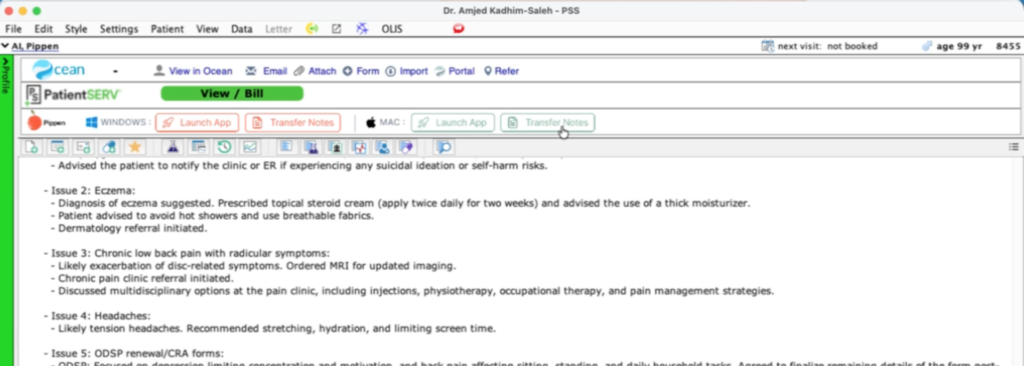
- Once ready, click Transfer Notes to send the note directly into PS Suite
Extending Your Workflow
Click View Encounter to open the visit in the Pippen web app, where you can:
- Review the transcript and note
- Draft referral letters and patient handouts
- Generate differentials, treatment options, and billing codes
- Chat with Pippen for follow-up questions
- Upload documents and get help completing forms
Installation of the Pippen Companion App and PS Suite EMR Integration
The integration requires the installation of Pippen Companion App as well as the Pippen AI Toolbar on PS Suite EMR. Please see the step-by-step guide for:
Installing the Pippen AI Toolbar on PS Suite EMR
Installing the Pippen Companion App on Mac
Installing the Pippen Companion App on Windows
Please feel free to reach out if you’d like to get started or need support. Contact us at team@pippen.ai.

 I 100 percent recommend this to any family physician. I didn't realize how cumbersome charting had become until Pippen eliminated it as a burden for me. My days are immeasurably more enjoyable and I am able to deliver better care to my patients. Pippen takes my feedback to constantly improve my notes. Because of Pippen my workdays are a breeze whereas before they were a tsunami of paperwork