Comment modifier un modèle dans Pippen
Les modèles personnalisés sont l’un des moyens les plus rapides de gagner du temps avec Pippen. Au lieu de corriger chaque note après sa création, vous pouvez ajuster le modèle une fois et laisser Pippen faire à votre façon chaque fois.
Vous pourriez vouloir des notes plus courtes, utiliser vos abréviations habituelles ou suivre un format légèrement différent. Modifier un modèle vous aide à correspondre à votre propre style pour que vous passiez moins de temps à corriger par la suite.
Ce guide vous explique comment modifier un modèle et l’optimiser pour votre flux de travail.
Étape 1 : Ouvrez et dupliquez le modèle
Allez à « Mes modèles » et sélectionnez le modèle que vous voulez modifier.
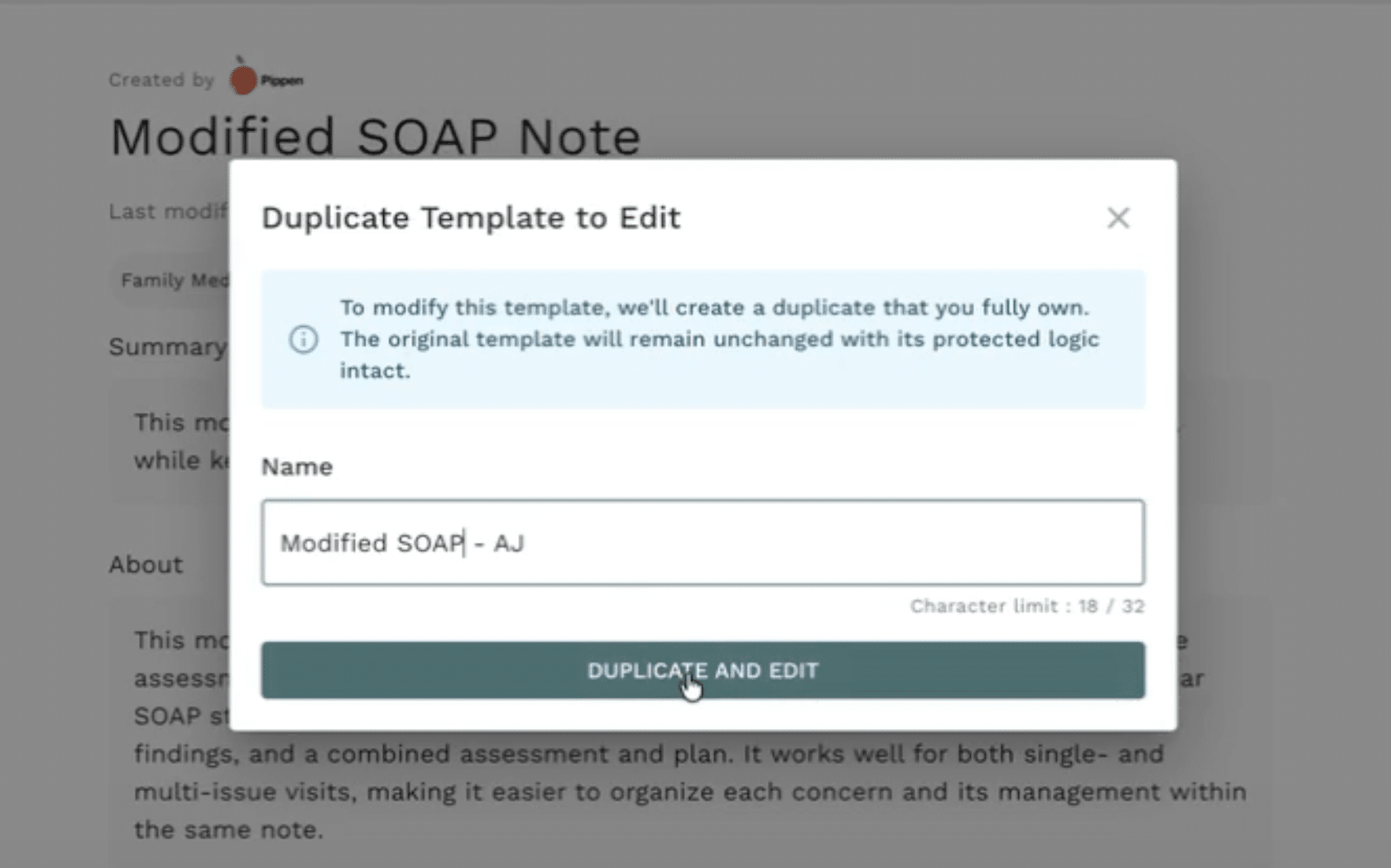
Lorsque vous cliquez sur « Modifier le modèle », Pippen vous invitera à le dupliquer. Cela garantit que l’original reste inchangé pendant que vous créez votre propre version. Renommez clairement votre copie pour qu’elle soit facile à retrouver plus tard.
Étape 2 : Modifiez les consignes
Toute la personnalisation se fait dans la section « Modifier les consignes ».
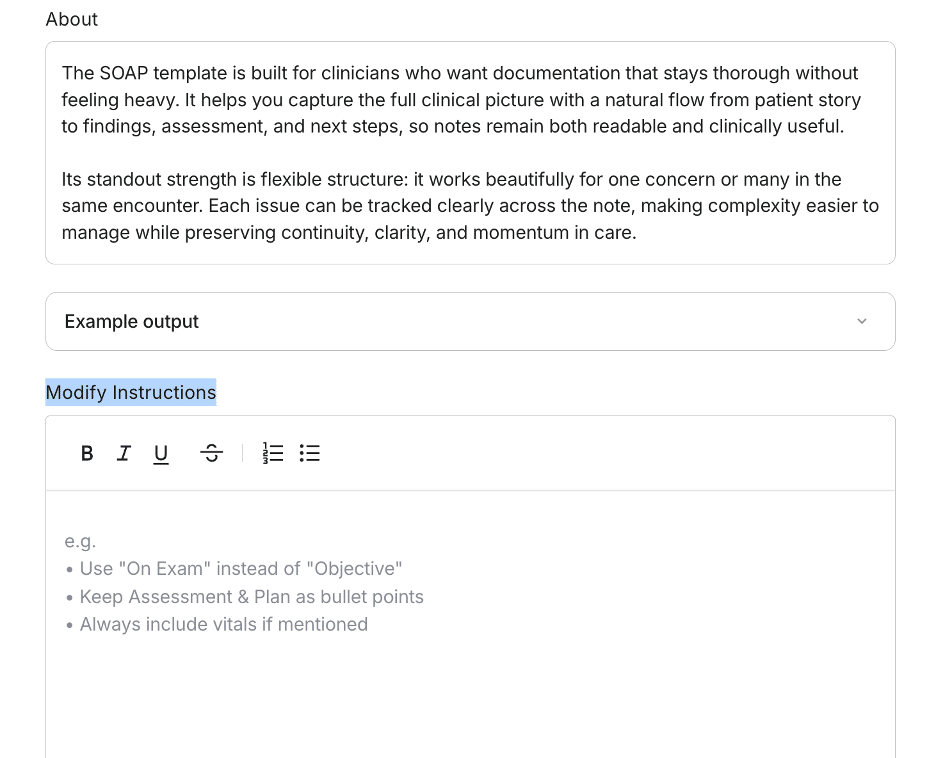
C’est là que vous contrôlez la façon dont Pippen génère les notes — structure, ton, mise en forme et niveau de détail. Vous pouvez aussi consulter l’exemple de résultat pour comprendre le comportement du modèle actuel avant d’apporter des changements.
Étape 3 : Apportez vos changements
Vous pouvez garder cela simple.
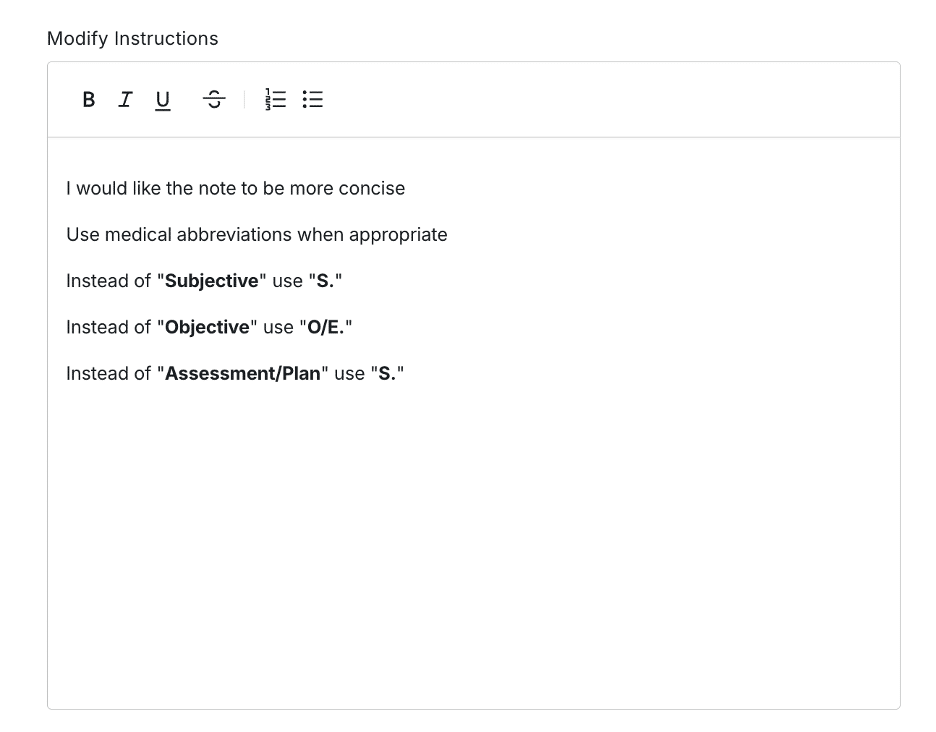
Si vous voulez des notes plus courtes, demandez à Pippen d’être plus concis.
Si vous aimez les abréviations, demandez-lui de les utiliser au besoin.
Si vous préférez des noms de section plus courts, vous pouvez les changer (comme Subjectif → S, Objectif → O/E, Évaluation et plan → A/P).
Même la mise en forme compte — si vous mettez quelque chose en gras dans les consignes, cela apparaîtra en gras dans votre note finale.
Étape 4 : Enregistrez et définissez par défaut
Une fois terminé, enregistrez votre modèle et épinglez-le comme modèle par défaut.
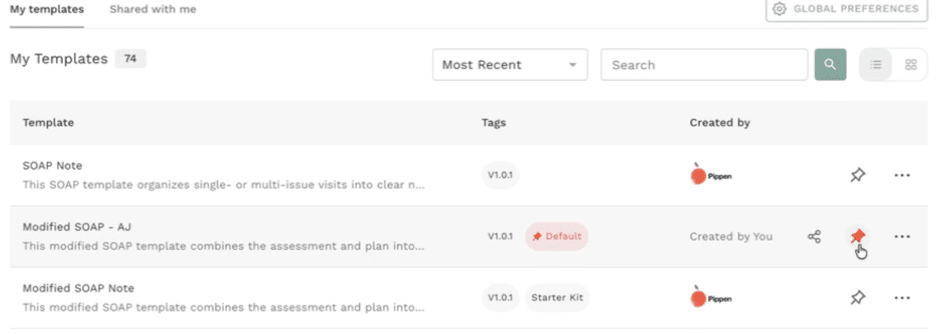
Cela signifie que Pippen utilisera automatiquement votre version par la suite.
Étape 5 : Testez-le
Pour faciliter la personnalisation de toutes vos notes, nous avons aussi introduit des interrupteurs en un clic (p. ex. l’ajout d’énoncés de consentement) dans les « Préférences générales ».* Cela vous permet de personnaliser plus facilement vos notes — sans avoir à taper de consignes.
Faites un test rapide à l’aide d’un audio ou d’une transcription.
Vérifiez que vos changements ont fonctionné :
- Les notes sont-elles plus courtes ?
- Les titres sont-ils mis à jour ?
- Les abréviations sont-elles utilisées correctement ?
Plus important encore, assurez-vous que rien d’important ne manque.
Regardez la vidéo ci-dessous pour une démonstration :
Participez à nos webinaires hebdomadaires pour en savoir plus sur Pippen !